Introduction
Global Filter is designed to provide a consistent way of selecting common reporting criteria to the different reports in ROCK, such as: Geography, equipment type and date/date range.
Geo Selector
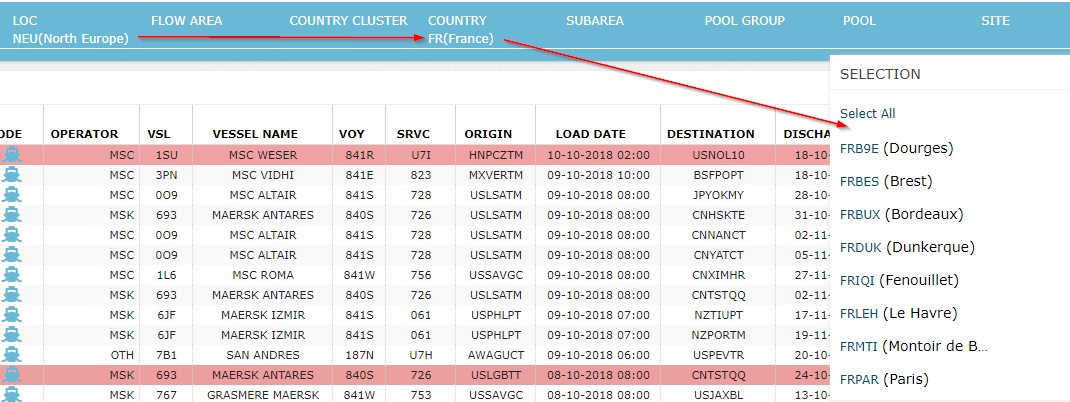
The system provides all geo levels available on the Global Filter ribbon at the top of the page, each one referred to as a "Geo Selector". The user clicks on one of the geo selectors to initiate selection: If the number of available geo units is more than 500, the system displays the message at the top of the selection list.
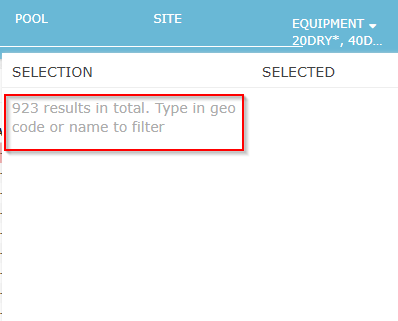
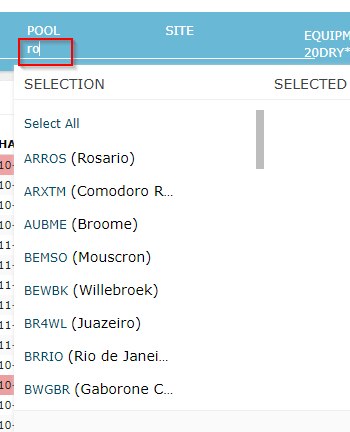
The user can type either geo code or geo name in the input box. As the user types, the system keeps filtering down the list to relevant options and finally show the available units when the total number of results is less than 100:
When the user makes a geo selection at any selector, the other selectors to the right hand side of the used selector are filtered so that they display only the options that are relevant for the selections made so far.
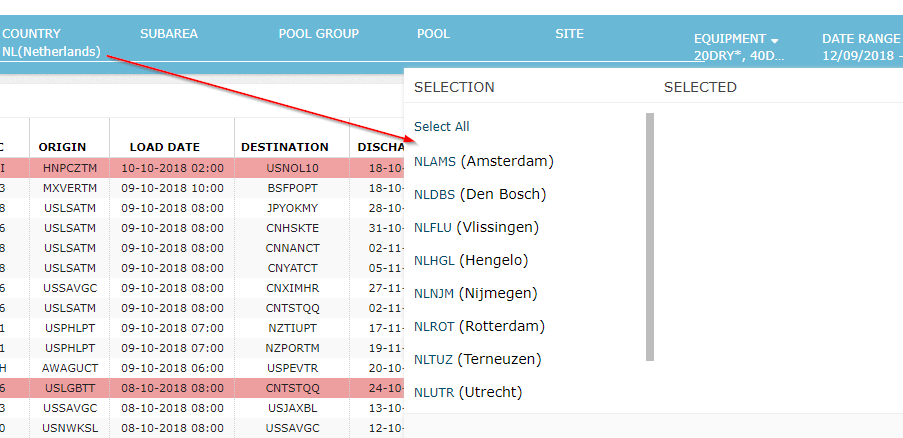
 The relationships between geo levels are not necessarily directly hierarchical, as stated in Geo Data. For instance, France country has separate pools under NEU and SEU LOCs. However, global filter will display the same pools when France is selected as the country, regardless what is selected for LOC. In other words, the selections are restricted as per the nearest selection to the left, rather than taking an intersection of all the selections. In the example here, Global Filter cannot display the list of pools under France country and under NEU. The list of pools is the same whether NEU or SEU is selected as LOC, or no LOC is selected.
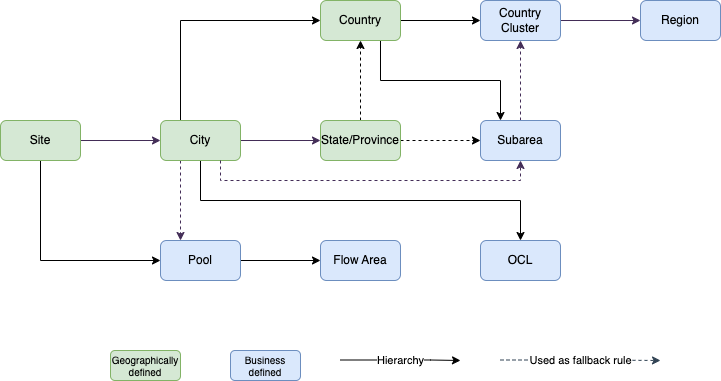
The Geographical Hierarchy inspired by SMDS and maintained in ROCK. Please look into Geo Data → Geo Data in SMDS
Equipment Selector
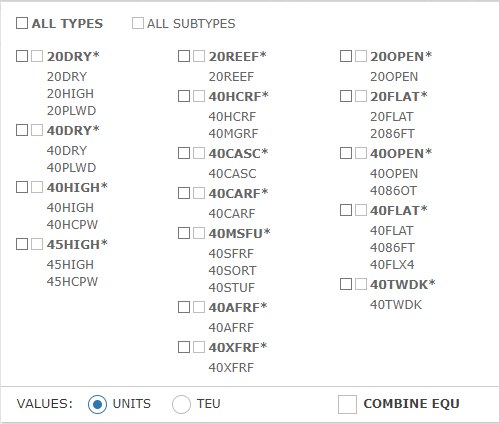
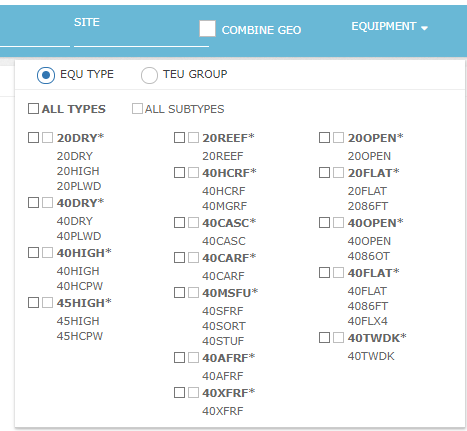
ROCK manages equipment types in a two-level hierarchy: Equipment Type and Subtypes, as discussed in section Equipment Types. Each equipment has a type specified with an asterisks (*) on the user interface across the application. This principle is followed also on the equ type selection mode on the Global Filter. The user chooses to show either type level or subtype level for each equipment on this component. When the user selects the checkbox on the left for an equipment, type level is selected. When they select the checkbox on the right, subtype level is selected. When the user selects one of the checkboxes, the system automatically deselects the other one for that equ.
Note that depending on the screen, the selector might allow one equ type or multiple equ types. Below example is from Equipment-Geo Stock Overview:
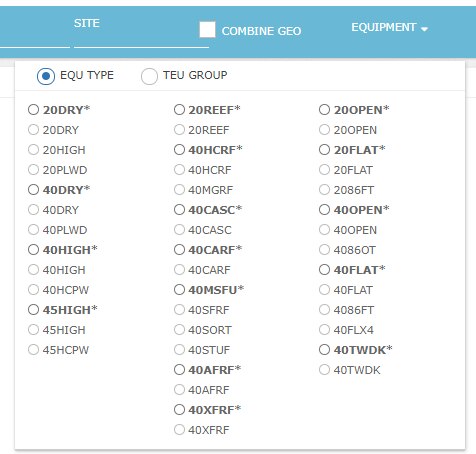
Some screens feature the old style Equipment Selector, which includes TEU group selection. Below example is from Positioning Planning Screen. This design is to be obsolete soon; the ambition is to roll out the flexible selector (the first one above) to all ROCK screens with Global Filter. The advantage of the flexible selector over the one below is that, it centralizes all the equipment-related selections into the same control and allows easy aggregation of data from several equ types in Units or TEU, removing the need to build separate controls for this screen by screen.
Date Selector
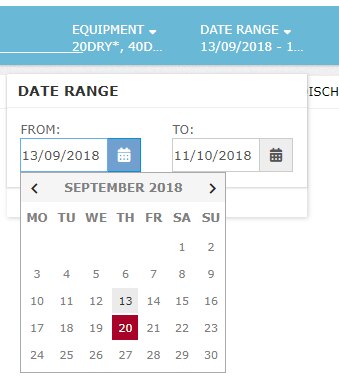
Date Selector is a standard control that is available in ROCK screens where applicable. Some screens work on a fixed date range (e.g. Global Stock Chart) therefore don't have this control. On the other hand, OTT Summary is an example screen which features a date range.
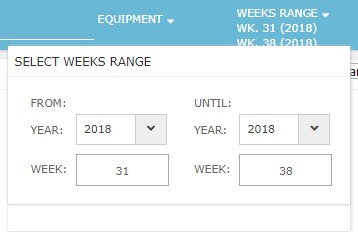
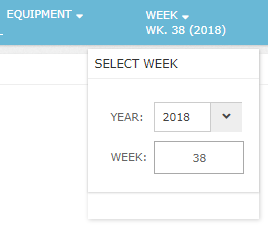
The screens in Forecast Accuracy Report, differently from the others, use a week instead of date, therefore uses a different controls:
Saved Filters
Save Filter
On any screen with the Global Filter ribbon on top, the user click on the arrow button at the right-hand end of the ribbon and clicks Save button:
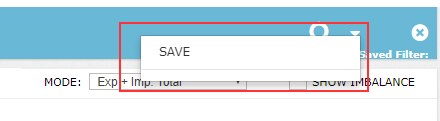
The system fires a pop up with an text input field for the preset name:

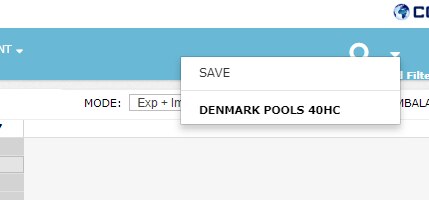
Once the user saves the filter, the system makes it available in the list of saved filters under the aforementioned menu, next time the user opens it on this screen. The user can load data using the saved selections by clicking on the filter name:
When the screen is showing data loaded with a saved filter, the user can make some changes in geo/equ/date selections, click Save button again, rename the filter and "Save As" current selections as a new preset.
Default Filter
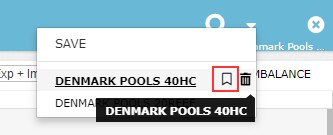
Once a filter is saved, the user can hover on the filter name. The system automatically displays a bookmark icon on mouse hover on the specific preset. The user clicks on the bookmark icon to set the preset as default for the current screen. Every time the user opens this screen, ROCK automatically loads this filter from that point on:
Attachments:
 image2018-9-19_15-42-59.png (image/png)
 image2018-9-19_15-43-27.png (image/png)
 image2018-9-19_15-46-51.png (image/png)
image2018-9-19_15-54-5.png (image/png)
image2018-9-19_15-57-48.png (image/png)
image2018-9-19_15-46-51.png (image/png)
image2018-9-19_15-54-5.png (image/png)
image2018-9-19_15-57-48.png (image/png)
 image2018-9-20_17-42-10.png (image/png)
 image2018-9-26_8-58-42.png (image/png)
 image2018-9-26_8-59-18.png (image/png)
 image2018-9-26_9-25-32.png (image/png)
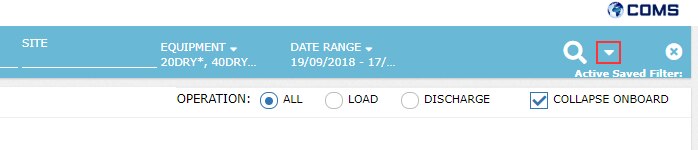 image2018-9-26_9-30-35.png (image/png)
 image2018-9-26_9-31-23.png (image/png)
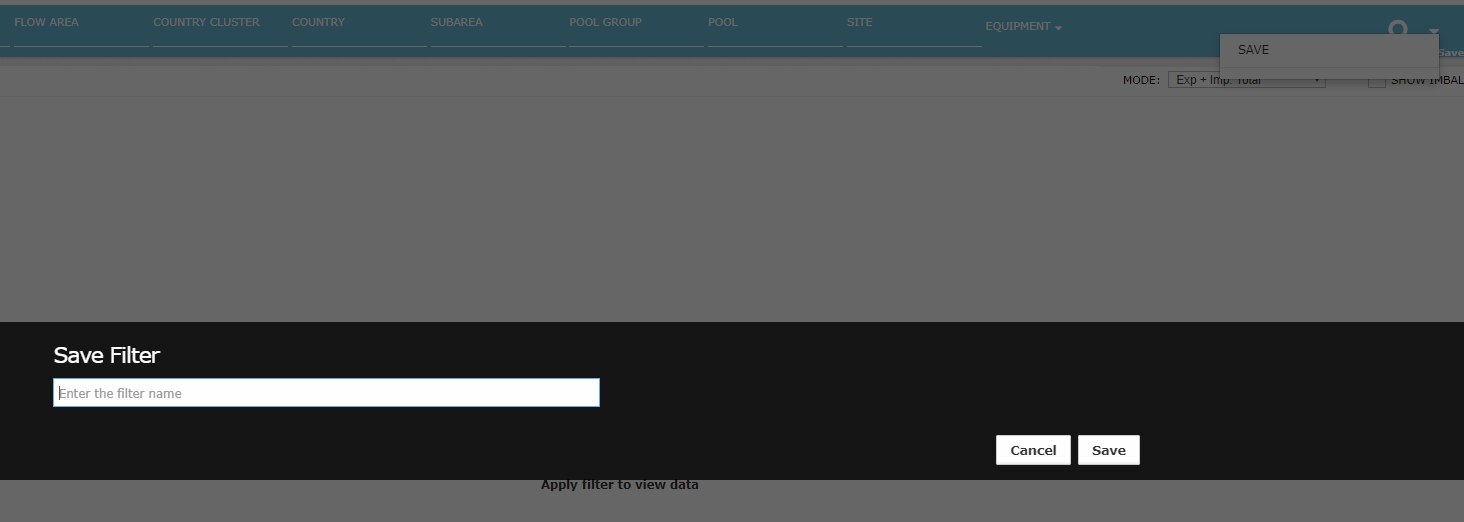 image2018-9-26_9-33-31.png (image/png)
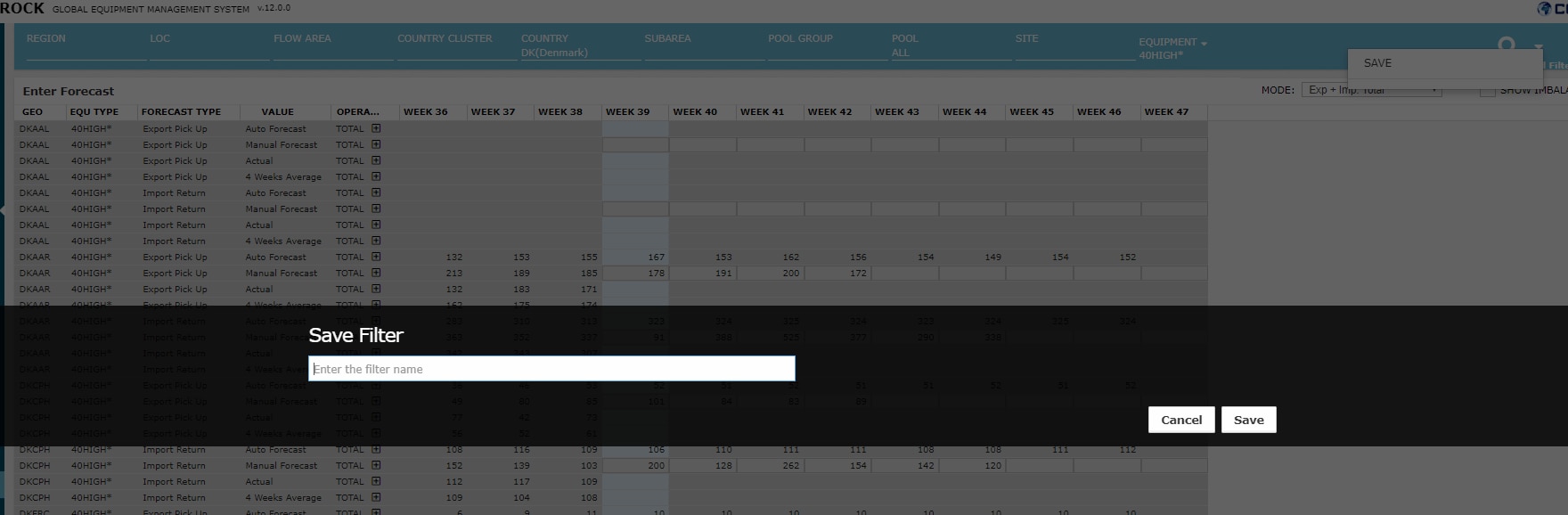 image2018-9-26_9-34-4.png (image/png)
 image2018-9-26_9-51-31.png (image/png)
 image2018-9-26_9-52-37.png (image/png)
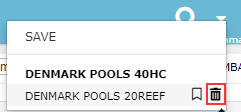 image2018-9-26_10-6-10.png (image/png)
 image2018-9-26_10-7-35.png (image/png)
 image2018-11-15_15-46-41.png (image/png)
Geographical hierarchy-bd28b6c58eff222c7330cb619d7f60f9e7b00afa.png (image/png)
image2018-11-15_15-46-41.png (image/png)
Geographical hierarchy-bd28b6c58eff222c7330cb619d7f60f9e7b00afa.png (image/png)