Introduction
OTT Management page is used to create and update Orders-To-Transfer (OTT).
OTTs are plans to move a certain amount of equipment from one site to another on selected modality and timing.
This section focuses only on creation of an OTT using the page. See section OTT States and RKEM Processing (CDS) for updates to existing OTTs.
In order to create an OTT, the user has to select a schedule and specify the type and amount of equipment. Upon the creation of a new OTT based on a GSIS schedule, the system sends the OTT information to ACE in order to get the empty plan into the vessel load list.
Contents
Finding the page
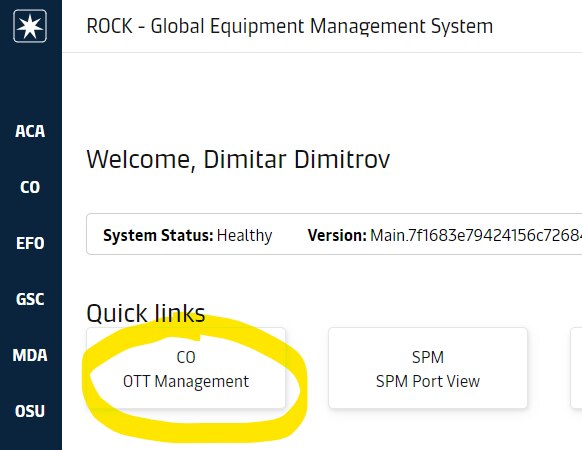
The page is central to working with ROCK and is available from both the landing page….
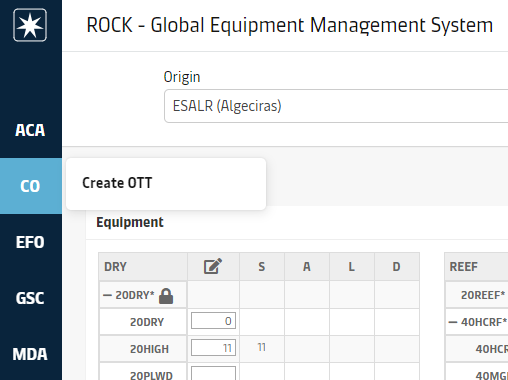
…and the main menu
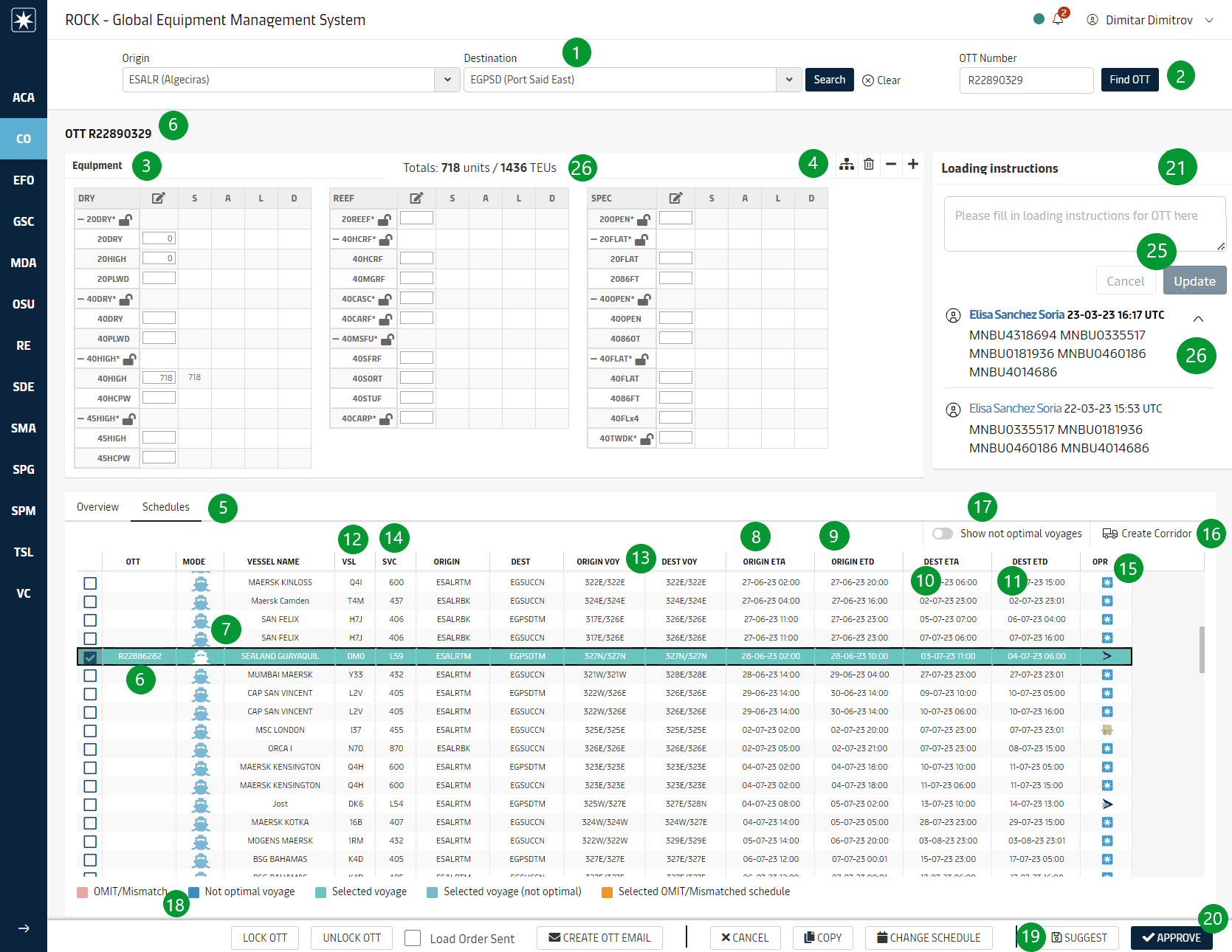
Page overview
Feature | Description | |
|---|---|---|
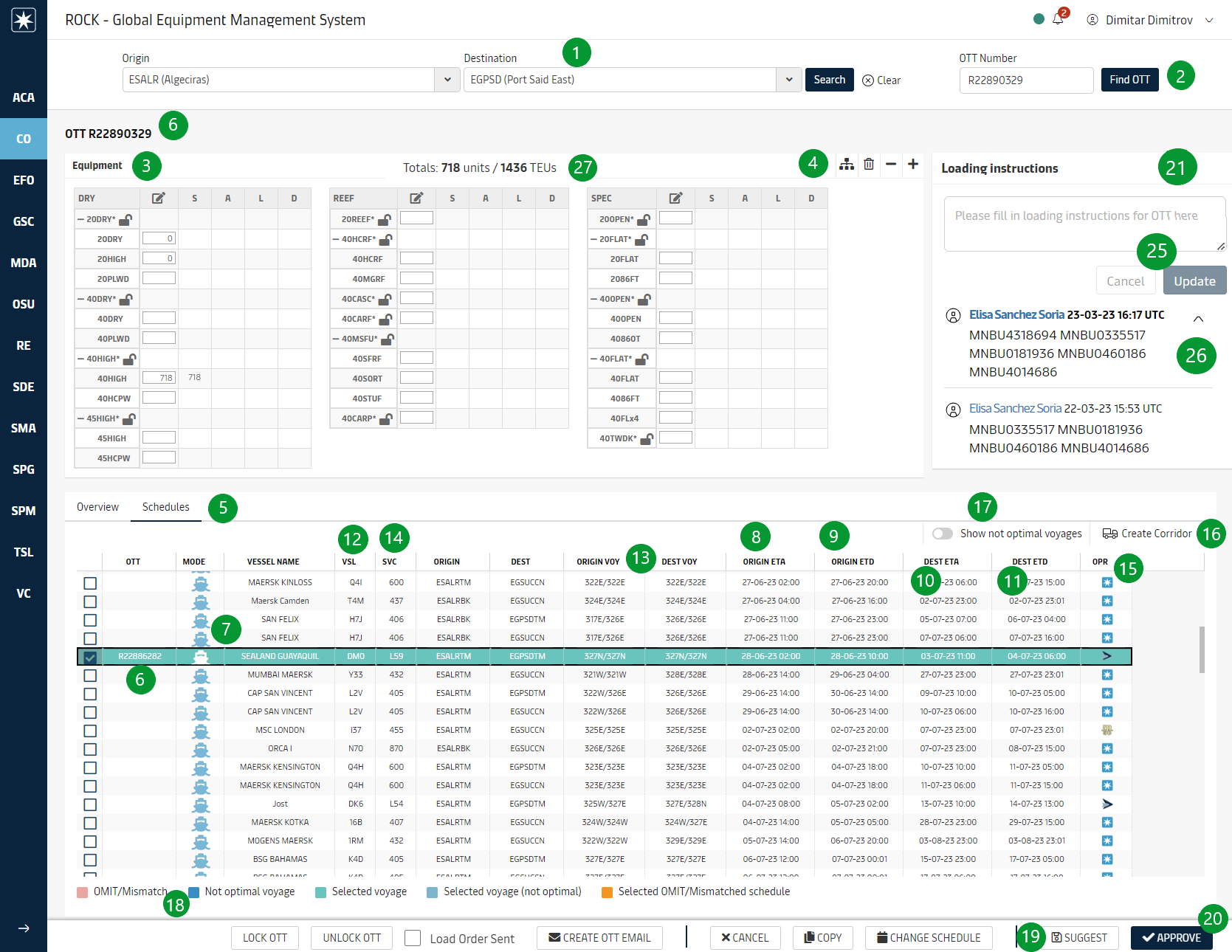
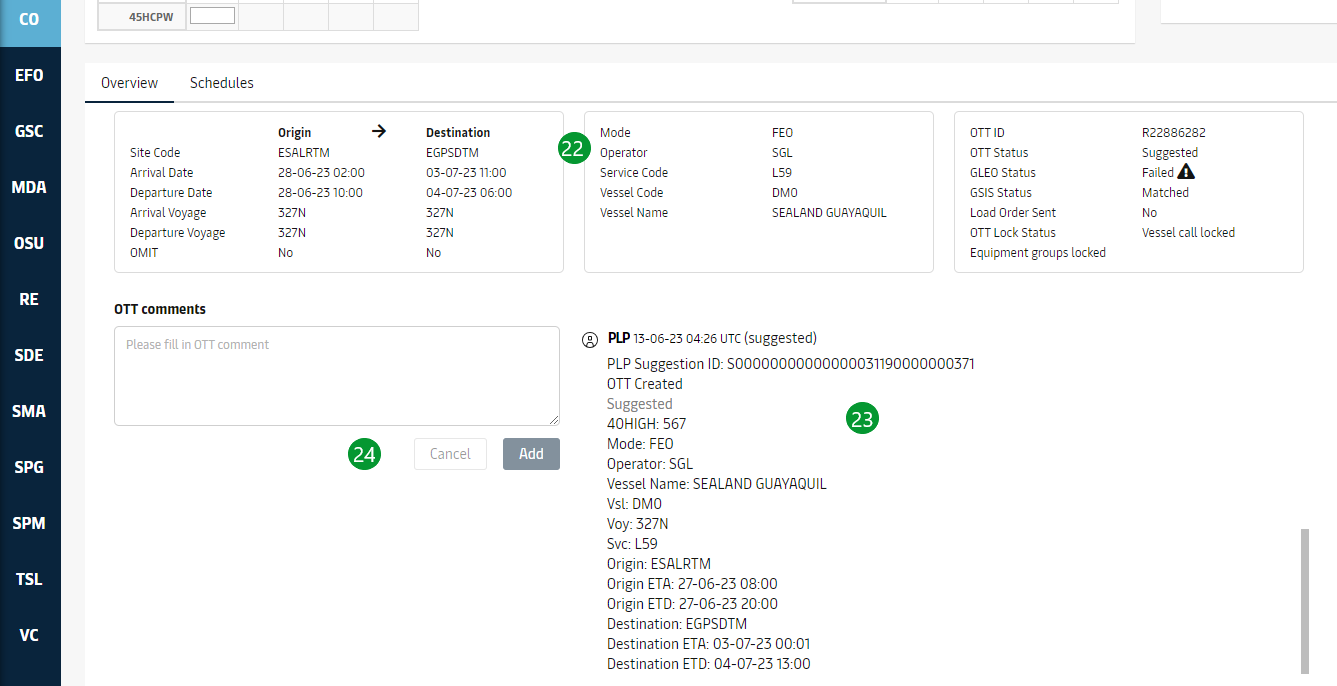
| 1 | Schedule Search | The user selects an origin pool and a destination pool and clicks search button to view available schedules |
| 2 | Find OTT | Find and show/edit an OTT by its number |
| 3 | Equipment Figures | Equipment figures section on the OTT page is used to display/enter;
The user can enter their preferred amount of containers to load into a dedicated Input field and use Suggest/Approve buttons at the bottom of the page to commit the value. The equipment figures section of the OTT allows display of equipment figures using a type vs subtype level hierarchy and allow to save their preferred layout as default. To see details on how L and D figures are updated, please see RKEM Processing (CDS) section. |
| 4 | Save Equipment Layout | For a new user that visits OTT detail page the first time, the system loads equipment hierarchy all expanded by default. After that, the user can choose to collapse one or more of the nodes. The user can also click on the button with hierarchy icon at the top right hand side of the equipment figures section in order to save the current expand/collapse preference as the personal default. Once the user has saved their default layout, the system loads equ figures section with this layout every time they open OTT Detail screen. Each time the user saves default layout, the old personal layout is overwritten and cannot be restored. |
| 5 | Schedules List | The system displays the schedules in site-to-site granularity. The system shows a record for all possible connections from each site under the Origin Pool to each site under the Destination Pool selected during schedule search. In order to accomplish this;
The system displays a union of all connections as per the criteria described above, which has an Origin ETA at least the same day as the system date (by ROCK server time) and at most later than 90 days after the system date/time. The system sorts the rows by Origin ETA in Ascending order by default but the user can change the sorting as necessary using column headers. If schedules further into the future are of interest, there is a button , the user can click this link. The system retrieves 21 days of more schedules into the future upon every click, until there are no more schedules available. |
| 6 | OTT ID | When an OTT is created in the database, the system assigns it a unique ID that is an incremental number with 9 digits. This allows the system to have up to 999 million OTTs and makes the ID compatible to enter as booking reference to RKEM for inland OTT reconciliation (See RKEM Processing (CDS) for more details) |
| 7 | Mode | Transport Mode refers to the modality the transfer is to be made with. GSIS-based OTT: Sourced from GSIS schedule data. (i.e. MVS for mother vessel, FEF for foreign feeder, etc.) Corridor-based OTT: It can take one of the four values depending on what is selected during corridor creation: Truck, Rail, Barge or Vessel. The system displays an icon in Mode column for each OTT row on the grid. For all GSIS-based OTTs, a vessel icon in Maersk blue is displayed. For corridor OTTs, each of the four transport modes has its own icon. |
| 8 | Origin ETA | GSIS-based schedule: The Origin Arrival date/time as per the underlying GSIS schedule. Corridor-based schedule: Departure time as per the underlying corridor |
| 9 | Origin ETD | The Origin Departure date/time as per GSIS. Blank for corridor schedules |
| 10 | Destination ETA | The Destination Arrival date/time as per GSIS. Blank for corridor schedules |
| 11 | Destination ETD | GSIS-based schedule: The Destination Departure as per the underlying GSIS or Corridor schedule Corridor-based schedule: The system calculates this value by adding Transit Time of the underlying corridor to Origin ETA of the schedule. See Manage Corridors section for more details. |
| 12 | Vessel Code | Vessel code string as received from GSIS. Blank for corridor-based OTTs. |
| 13 | Origin & Destination Voyage | Voyage Numbers. Pairs of Arrival/Departure Voyage numbers from the the Origin & Destination sites on the OTT, as per GSIS schedule. Blank for corridor-based OTTs. |
| 14 | Svc | Service Code for the schedule, as per GSIS schedule. Blank for corridor-based OTTs. |
| 15 | Operator | Name of the company conducting the empty transfer. GSIS-based schedule: Sourced from GSIS schedule data. (i.e. MSK, MCC, etc.) Corridor-based schedule: Operator takes the value specified by the user during corridor creation. See Manage Corridors for more details. For each schedule, the system displays an icon for the operator, if there is an icon in the database. If there is no icon, the operator text is displayed instead. |
| 16 | Create Corridor | 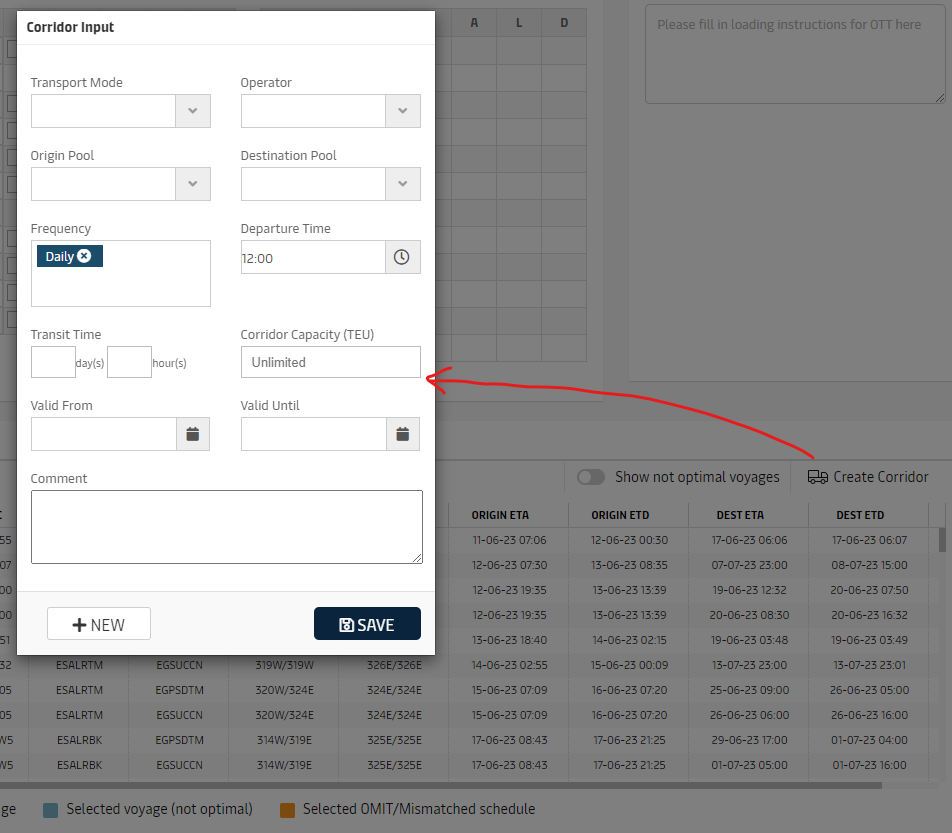 Once the user searches a schedule, the system displays New Corridor button at the top right of the schedules grid. When the user clicks this button, the system displays the corridor form in a pop up window. The process of filling out the form and saving the corridor is the same as described in Manage Corridors section. The only difference is that the system sets the Origin Pool and Destination Pool on the form as per the schedule search of the user and blocks the user from changing them, so that the user can create only a corridor matching the current schedule search context. Once the user saves the corridor, the system adds the new corridor record to the database, closes the pop up, and refreshes list of schedules available for the current OTT, and includes the schedules based on the new corridor. |
| 17 | Schedules list legend | The background of specific schedules indicates a characteristic of the schedule. For example, if a schedule has OMIT label in Origin and/or Destination site, the system displays these rows with light red background color (in addition checkbox on the row is not available, in order to prevent selection). |
| 18 | Show Non-Optimal voyages | If a vessel rotation causes the vessel to call a port more than once during its journey from the Origin Site until it reaches Destination Site, causing a detour, the system considers the schedule as non-optimal and marks it with yellow row Background. Example: A schedule that is defined by a vessel loading from Port A and discharging the destination Port E, as per the user->s search. Assumption is there are B, C, D ports in between geographically. The following sequence of port calls of this vessel would constitute a regular schedule: A → B → C → D → E But if the vessel was calling Port A again after calling Port B; this would constitute a non-optimal schedule from A to E: A → B → A → B → C → D → E Similarly, if the vessel was calling Port C again after calling Port D; this would also constitute a non-optimal schedule from A to E: A → B → C → D → C → E The user can select a non-optimal schedule just as the regular ones. The yellow color denotes only a warning to the user. |
| 19 | Suggest Button | When the user clocks this button, the system first checks if the user has selected a schedule and entered a positive equ figure for at least one equ type. If the validation succeeds, the system;
|
| 20 | Approve Button | The user can choose to create the OTT already in Approved state. When the user clocks this button, the system first checks if the user has selected a schedule and entered a positive equ figure for at least one equ type. If the validation succeeds, the system;
|
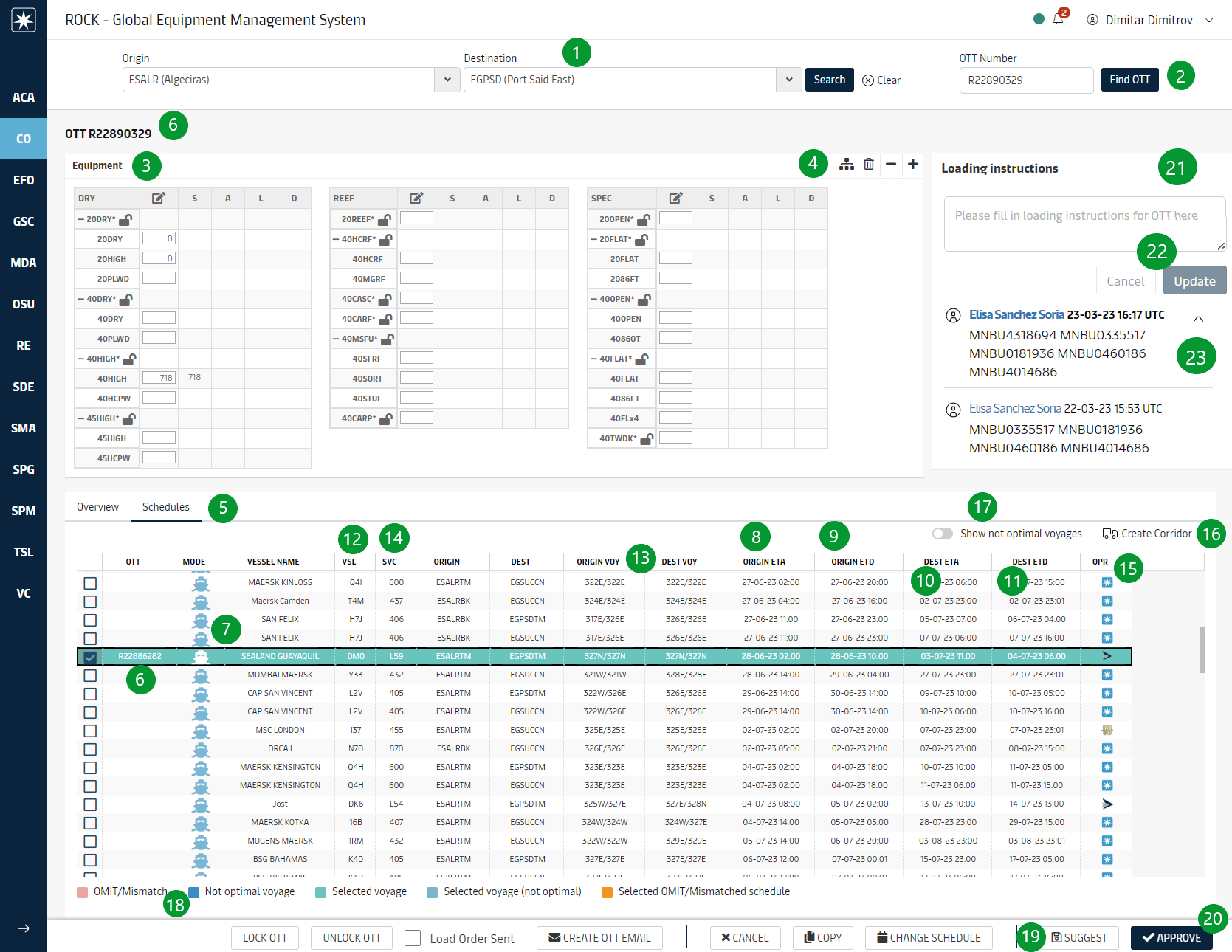
| 21 | Loading instruction | ROCK sends the empty loading instruction (e.g. food grade, damage, actual container numbers) to ACE to be included in the load list. Only the latest instruction is sent and retained in ACE; the version history in ROCK shows how the loading instruction has changed. A loading instruction is saved on Approve/Suggest (20/19) or by using the Update button (25) |
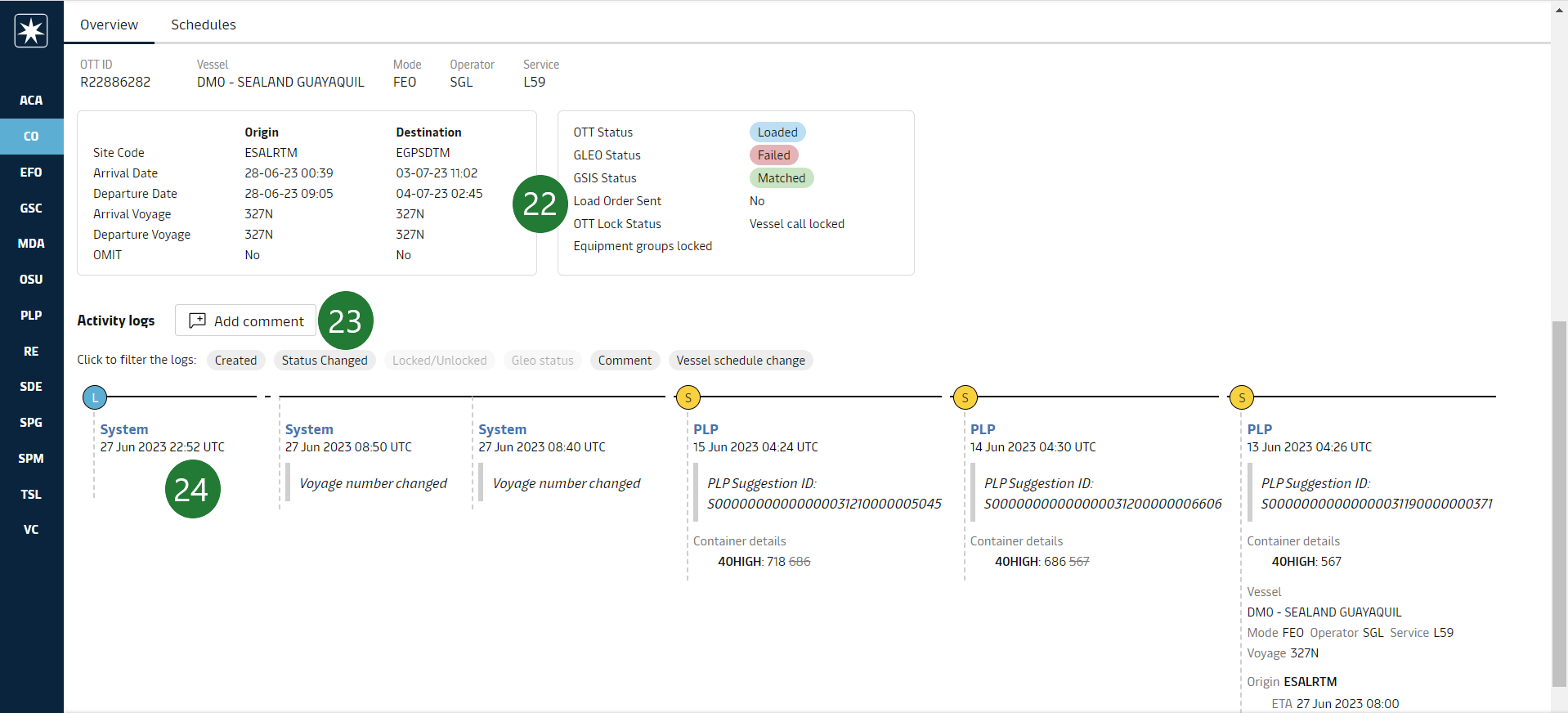
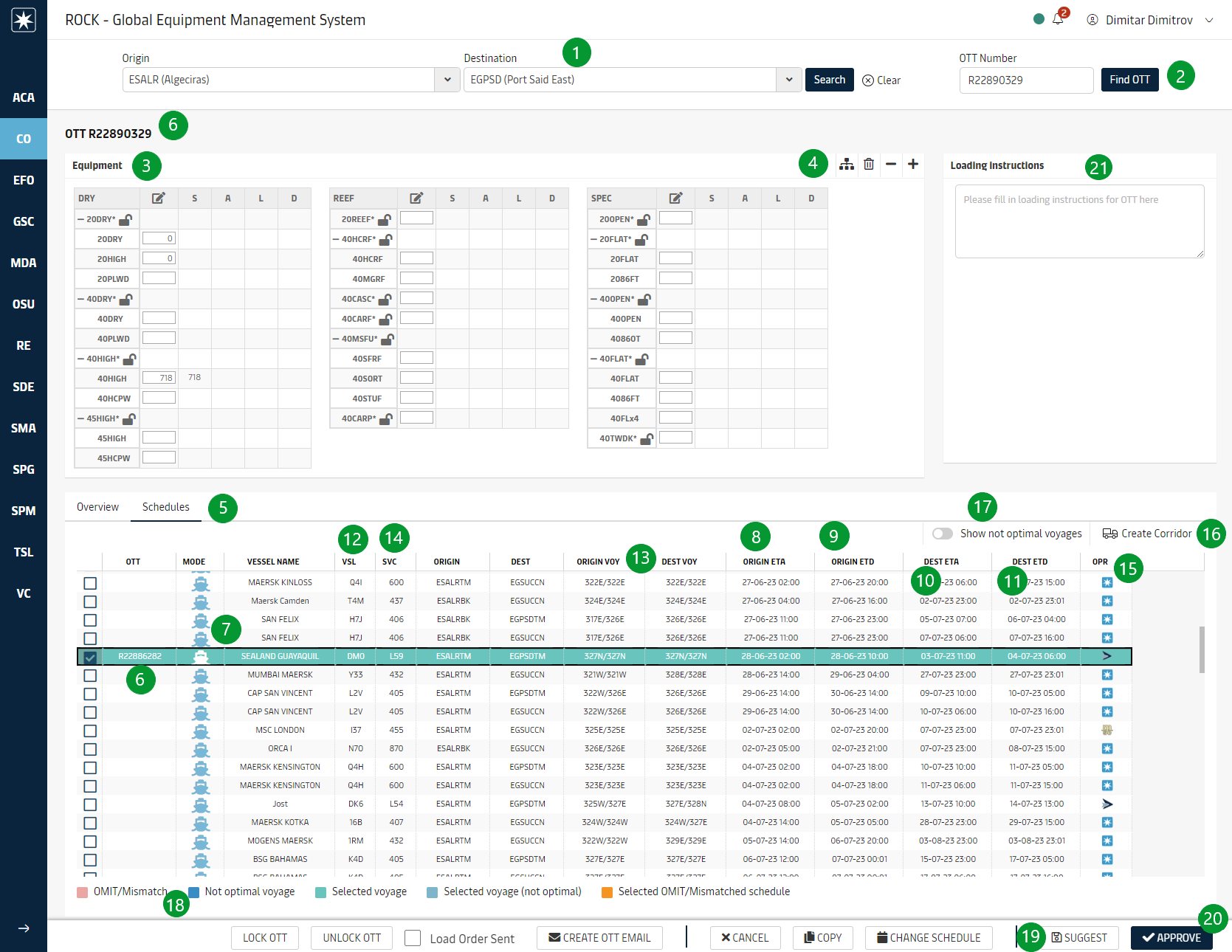
| 22 | OTT Overview | Summary of key data for the OTT. In case of Onboard OTTs, a table outlining the individual OTTs is shown as well. |
| 23 | OTT Comments | The user can enter comments. See OTT Comments section OTT States section for more details. |
| 24 | Activity Logs | Actions happening on an OTT (e.g. creation, change of schedule) are logged and presented here to support traceability and root cause analysis. See Activity logs section under OTT States for details. |
| 25 | Loading instruction update | The update button only updates the loading instruction; no other changes in the OTT are needed; status doesn’t change. Cancel simply clears any written text in the text box. |
| 26 | Loading instruction versions | By default only the active loading instruction is shown. The older versions can be shown by expanding the component (the arrow down) |
Design Notes
Aggregate from Subtype to Type
If the user enters figures at the subtypes, the system automatically sums the amount and writes this onto the equ type level. Example: The user enters 30 to 20DRY subtype, and 15 to the 20HIGH subtype: When the user collapses the group, the system displays 30+15 = 45 for the 20DRY* equ type level
Segregate from Type to Subtype
If the user enters a figure at the type level, the system automatically adds it to the the primary subtype level.
Example: The user enters 45 to the 20DRY* type: The system automatically adds 45 onto the 20DRY, primary subtype for this equipment type.
If the user increases the figure at the type level, the system automatically adds the positive difference on the type level to the primary subtype level.
Example: The user adds 15 more to the 20DRY* type on top of the previous 45: The system automatically adds the amount of 15 onto the 20DRY, primary subtype for this equipment type increasing it from.
If the user decreases the figure at the type level to the extent that the primary subtype would have negative value, the system consumes the primary subtype first and then deducts the rest from the next subtype, and continues until the total delta is deducted.
Example:
Starting state:
20DRY*: 45
20DRY: 10
20HIGH: 35
The user reduces 20DRY* from 45 to 20 at the type level. The final state would be:
20DRY*: 20
20DRY: 0
20HIGH: 20
Attachments:
 image2018-9-19_12-42-47.png (image/png)
 image2018-10-3_9-55-54.png (image/png)
 image2018-10-3_9-56-40.png (image/png)
 image2018-10-3_10-15-46.png (image/png)
 image-20230622-114257.png (image/png)
 find-in-main-menu.png (image/png)
find-in-landing-page.png (image/png)
find-in-main-menu.png (image/png)
find-in-landing-page.png (image/png)
 image-20230622-120337.png (image/png)
 Create-corridor-dialog.png (image/png)
image-20230622-121828.png (image/png)
Create-corridor-dialog.png (image/png)
image-20230622-121828.png (image/png)
 image-20230622-122216.png (image/png)
 image-20230622-122228.png (image/png)
 image-20230622-123217.png (image/png)
 main-page-view.png (image/png)
 overview-tab.png (image/png)
 main-page-view.png (image/png)
 main-page-view.png (image/png)
 main-page-view.png (image/png)
overview-tab.png (image/png)
main-page-view.png (image/png)
overview-tab.png (image/png)