Introduction
This section described the basic functions used to manage empty flow plans (OTTs) as objects, including the features available to perform the more detailed management and planning.
Contents
Basic OTT Features
Create OTT
Users can manually create OTTs using the dedicated screen in ROCK. The process of creating an OTT is described in Create/Edit an OTT.
Cancel OTT
Users can cancel OTTs if the plans are no longer valid.
Reinstate OTT
Cancelled OTTs can be reinstated, if empty flows are needed after all. To reinstate a cancelled OTT, the user clicks on Reinstate button. Upon this click, the system clears out the equ figures on the OTT, and enables Suggest and Approve buttons. Then the user enters equ figures into the input cells and clicks Suggest or Approve button. Finally, ROCK will update the OTT state, insert the new numbers.
Copy OTT
If an OTT is planned on a service with an origin/destination pair that is frequently used, the Copy OTT function will be helpful to make quickly make additional plans for the future. When the users click the Copy OTT function, the schedule is automatically opened, and the user can identify future departures between terminals in the origin and destination.
Advanced OTT Features
Change OTT Schedule
In order to change the schedule of an existing OTT, the user clicks on Change Schedule button on the page footer and chooses a schedule. When the user is changing schedule, the system shows schedules where 'Origin ETA' >= [OTT Load Date - 10 Days]. This feature of changing to an earlier schedule was designed to allow the users to manage GSIS mismatch cases where the system cannot resolve automatically. Read more on GSIS mismatch case on Reconciliation
Send OTT as Email
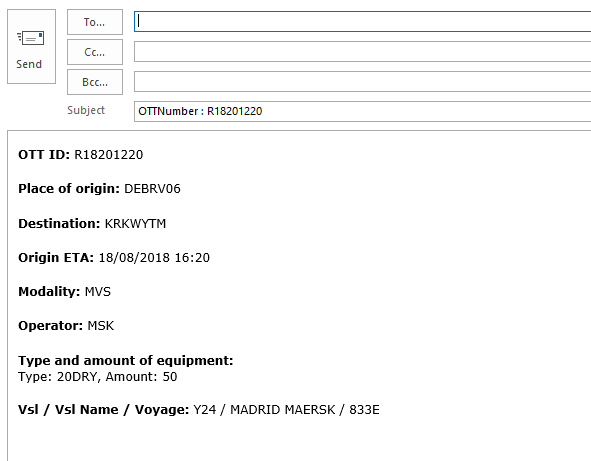
The feature is designed to allow the user to easily summarize the OTT information in an email, in order to send to depots/terminals to orchestrate empty release for loading. When the user clicks here, the system suggests the user to open the file in Outlook application. When the user opens the file, MS Outlook displays a draft email with the following attributes of the OTT pre-populated as seen in the example below:
Send Empty Load Order
The system displays this checkbox on the page footer, as long as the selected OTT is not in Cancelled status. This is only a flag to help the user to track for which OTTs they already sent the load order. It is updated only manually and has no impact on anything else.
OTT Activity Log
Each OTT log entry includes the actor that has updated the OTT and the time when the update was made. For any automatic update made by the system, the log displays the actor name as "System" or "PLP". The system displays the date/time GMT (UTC) terms. The initial letter of the status in circle is used as a symbol. S, A, L, D, C for Suggested, Approved, Loaded, Discharged and Cancelled statuses, respectively.
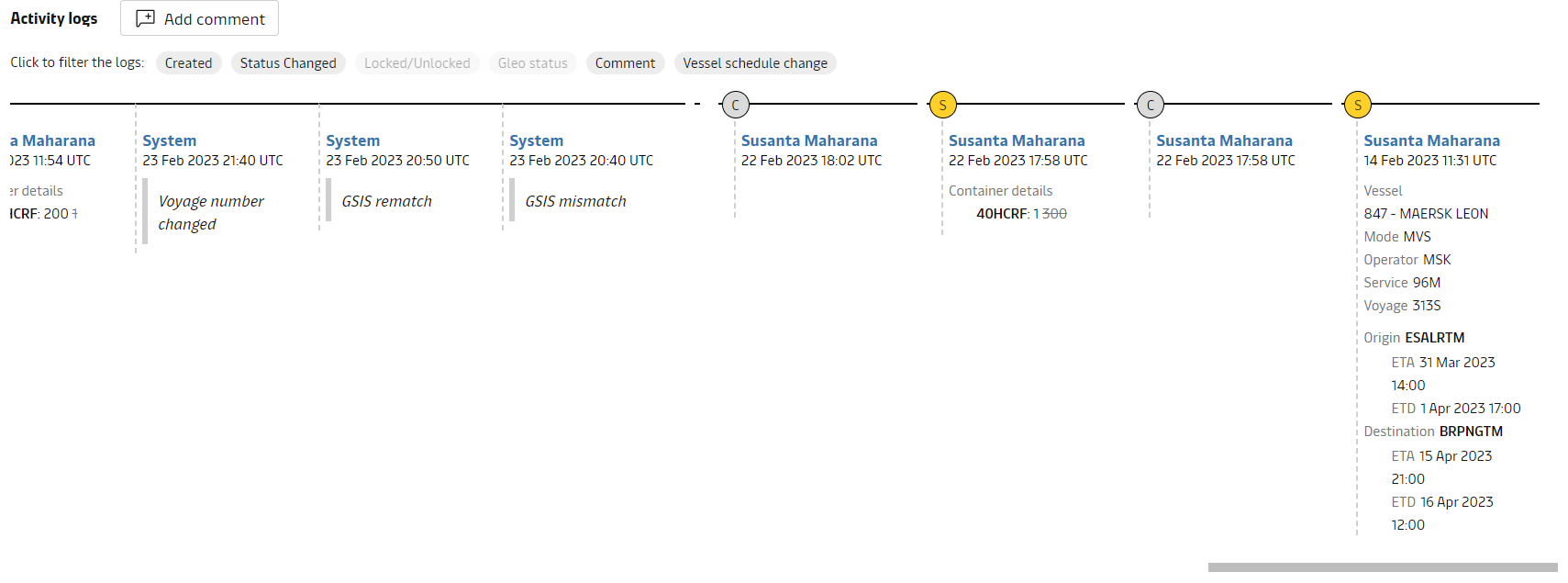
ROCK logs the following changes on the OTT:
Original OTT creation data
OTT equipment figure changes
Note that for load and discharge updates only the first and the latest events are shown in the log since reconciliation happens often and the intermediate updates are considered noise.
There is also an automatic status change event (first in the sequence) without any equipment amounts that happens:
For Marine OTTs, when GSIS flags that ActualArrival status is assigned
For Inland OTTs, when departure date is reached
OTT state changes
OTT locking (See OTT & Equipment Group Locking for more details on the event)
Automatic voyage number changes (See Reconciliation for more details on the event)
Manual OTT schedule changes (See above for more details on the event)
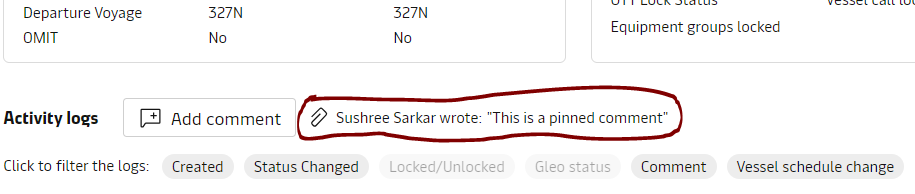
OTT Comments
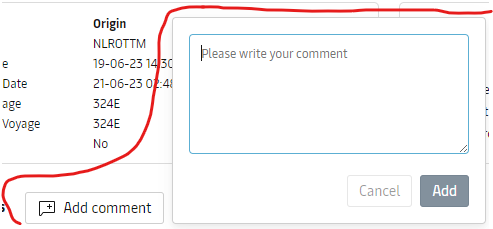
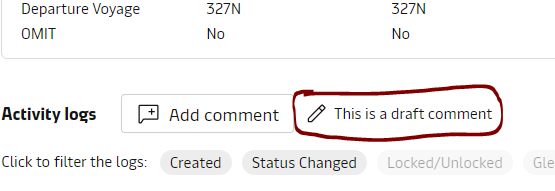
The users can enter a comment onto the OTT using the button and pop-up on top of the Activity log. The system displays the last comment entered or the comment that is not yet saved next to the comment box:
OTT States
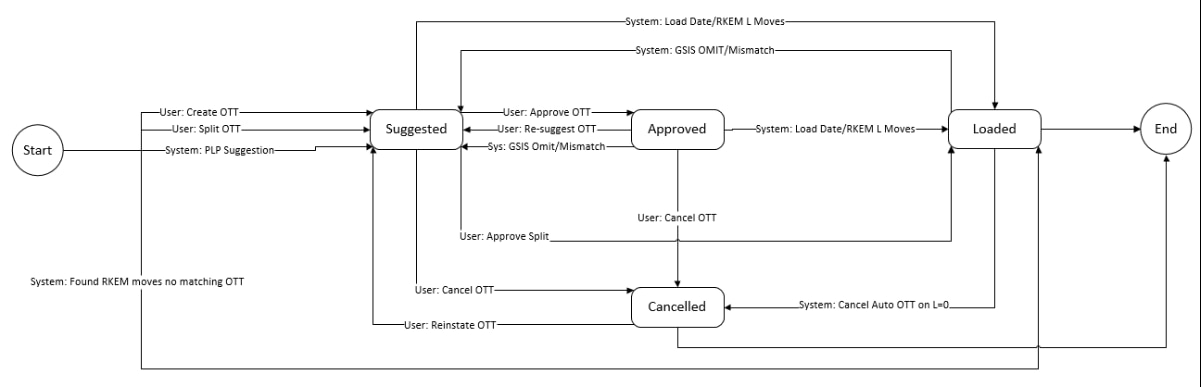
To better understand empty flow plans (OTTs) in relation to their empty flow execution, ROCK manages and captures them in different states. The OTT moves between different states during the execution phase, which enables timely understanding of planning vs. execution compliance, including a refined stock projection logic (see Stock). The OTT moves between states based on actions from equipment planners, but also automatically, as plans are executed. The system sends all the state changes to ACE in order to get the empty plan into the vessel load list.
List of States
As ROCK is a planning tool to move empty boxes onto ships, there is only two distinct phases i.e. before and after the vessel departs and operations are complete. The OTT states include two states prior to vessel departure, and only one after. The last state Cancelled is reserved for OTTs that are no longer valid.
OTT State | Phase | Description |
|---|---|---|
Suggested | Pre Vessel Departure | OTTs in this state are created with distinct Suggested numbers. The Suggested numbers are automatically sent to ACE, to be considered by cargo planning. |
Approved | Pre Vessel Departure | OTTs in this state are created with distinct Approved numbers, which override any Suggested numbers. This state is introduced to facilitate local equipment planning processes, where planning must be finalized by equipment managers. The Approved numbers are automatically sent to ACE, to be considered by cargo planning. |
Loaded | Post Vessel Departure | OTTs are automatically assigned this state, as empty flows are being executed. |
Cancelled | - | OTTs can be put to cancelled by users if they are no longer valid. |
State Transitions
The below table describes all possible OTT state transition and the triggers
State From | Trigger | State To |
|---|---|---|
- |
| Loaded |
| Suggested Approved | |
Suggested |
| Cancelled |
| Loaded | |
| Approved | |
Approved |
| Suggested |
| Cancelled | |
| Loaded | |
Loaded |
| Cancelled |
| Suggested | |
Cancelled |
| Suggested |
The below diagram summarizes the states and transitions from the above table
Attachments:
 image2018-9-19_13-22-53.png (image/png)
image2018-9-19_13-42-17.png (image/png)
image2018-9-19_13-22-53.png (image/png)
image2018-9-19_13-42-17.png (image/png)
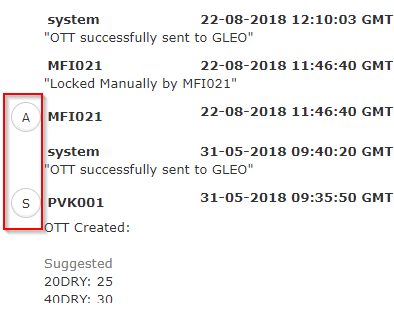 image2018-10-1_13-52-26.png (image/png)
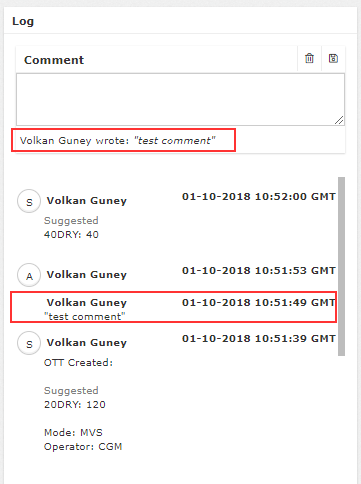 image2018-10-1_15-45-20.png (image/png)
 image2018-10-1_13-20-7.png (image/png)
 image2018-10-3_12-27-34.png (image/png)
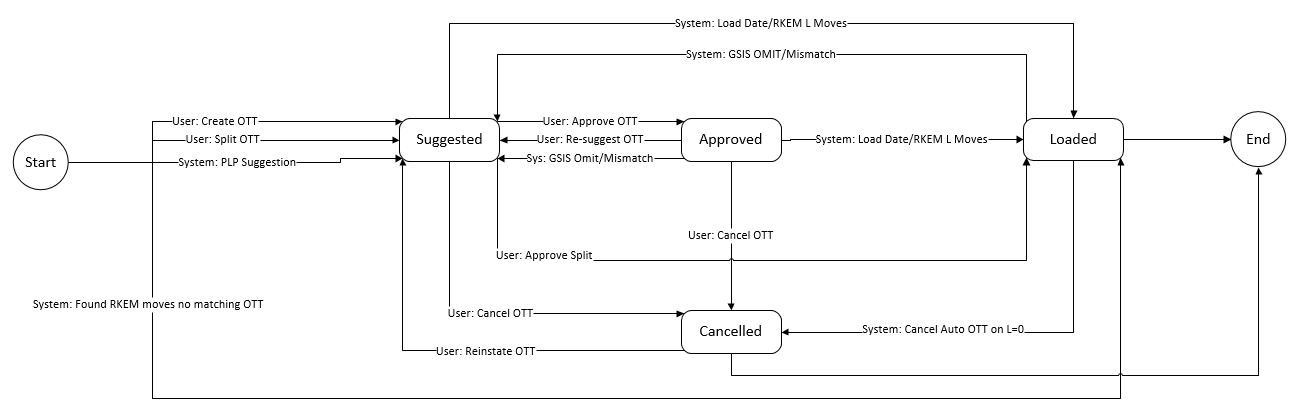 image2020-2-18_7-48-30.png (image/png)
image2023-8-23_16-16-42.png (image/png)
image2020-2-18_7-48-30.png (image/png)
image2023-8-23_16-16-42.png (image/png)
 image2023-8-23_16-20-41.png (image/png)
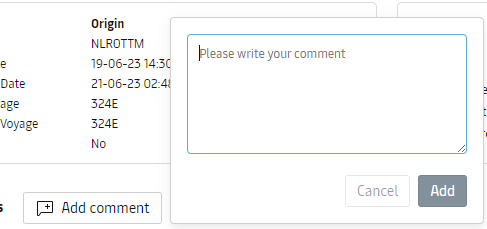 image2023-8-23_16-21-27.png (image/png)
 pinned_comment.PNG (image/png)
 draft_comment.PNG (image/png)
