Introduction
In ROCK, a corridor defines a certain mode of transport (Truck, Rail, Barge, Vessel) along with its frequency and validity date, that can be used to re-position empty containers from one site to another. ROCK users create and maintain a corridor, in order to to plan inland OTTs (Truck, Rail, Barge modes) and ocean (Vessel mode) as placeholder until a GSIS schedule is created.
Contents
Page Access
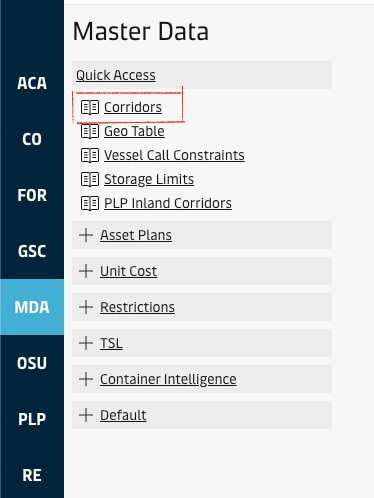
Corridors screen is under Quick Access under Master Data Module:
Overview
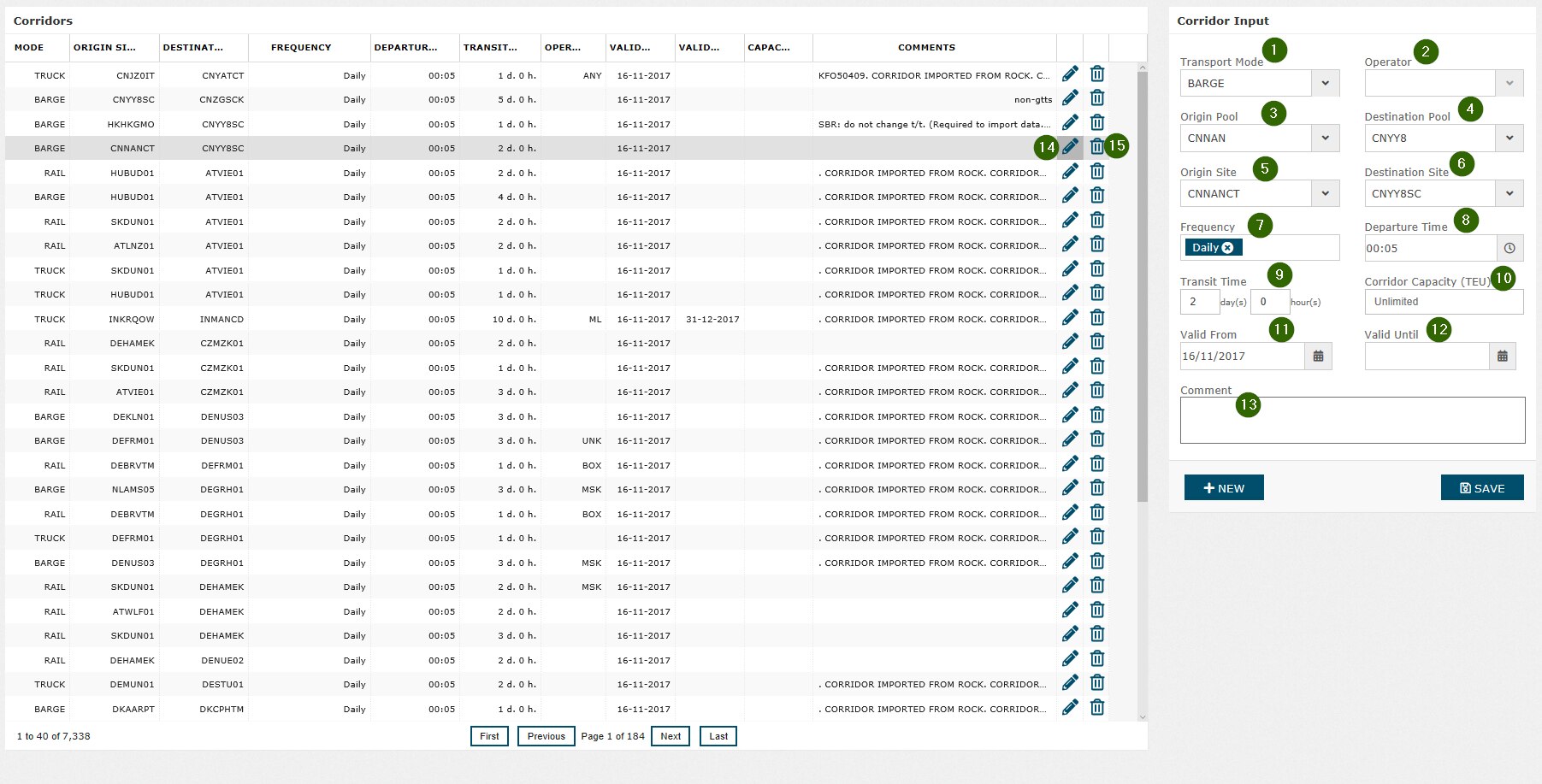
Feature | Description | |
|---|---|---|
| 1 | Transport Mode | Vehicle means of empty transfer. Can take one of the following values:
|
| 2 | Operator | The user enters the name of the company which operates the transport |
| 3 | Origin Pool | The pool where the origin site is to be selected from. |
| 4 | Destination Pool | The pool where the destination site is to be selected from |
| 5 | Origin Site | Origin site of the corridor. When the user selects Origin Pool, the system automatically filters this list so that only a site under the selected pool is visible here. |
| 6 | Destination Site | Destination site of the corridor. When the user selects Destination Pool, the system automatically filters this list so that only a site under the selected pool is visible here. |
| 7 | Frequency | The days of the week where the corridor operates. The user can select one or some days of the week, or simply select "Daily" value for all days of the week. If the user has selected Daily, the system does not allow selection of other values. |
| 8 | Departure Time | The time the vehicle takes off from Origin site. Format: hh:mm in 24h. The system sets it 12:00 by default and the user can change it afterwards. |
| 9 | Transit Time | The time it takes from Origin Site to the Destination Site in days and hours. |
| 10 | Corridor Capacity (TEU) | This field is a remnant from the early design of inland optimisation. As PLP Inland Corridors was introduced, this field is obsolete. |
| 11 | Valid From | The first date the corridor is valid. The system starts displaying the corridor as a schedule in the schedules grid on OTT Detail page from this date onwards (See Create/Edit an OTT for details of schedule search) It is a mandatory field to enter. |
| 12 | Valid Until | The last date the corridor is valid. The system stops displaying the corridor as a schedule in the schedules grid on OTT Detail page from this date onwards (See Create/Edit an OTT for details of schedule search) If the user leaves this field blank, the system assumes infinite validity and shows the corridor on the schedules list perpetually. |
| 13 | Comment | Any notes the user might need to enter |
| 14 | Edit Corridor | When the user clicks Pencil icon, they can start modifying the corridor. Note that existing OTTs that are associated to the corridor are not affected by the modifications to the corridor record. |
| 15 | Delete Corridor | When the user clicks Trash Bin icon, the system prompts deletion of the corridor record. Note that existing OTTs that are associated to the corridor are not affected by deletion of the corridor record |
Attachments:
 image2018-10-2_14-34-35.png (image/png)
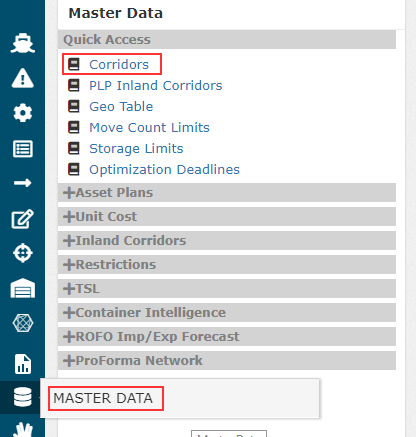 image2018-10-9_12-54-51.png (image/png)
 Screenshot 2025-09-03 at 11.37.05 AM.png (image/png)
