Introduction
OTT Summary lists the OTTs in the system. It displays each OTT's attributes and features ability to export the list to excel. The screen is central to daily work for many of the ROCK users, especially LOC, CC and OTT User user types. It is the landing page for all ROCK users except LOC users.
Contents
Page Access
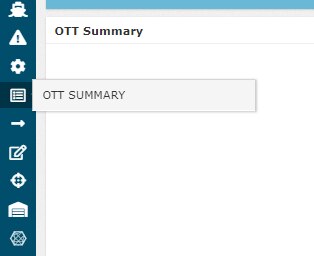
OTT Summary item in ROCK menu:
Overview
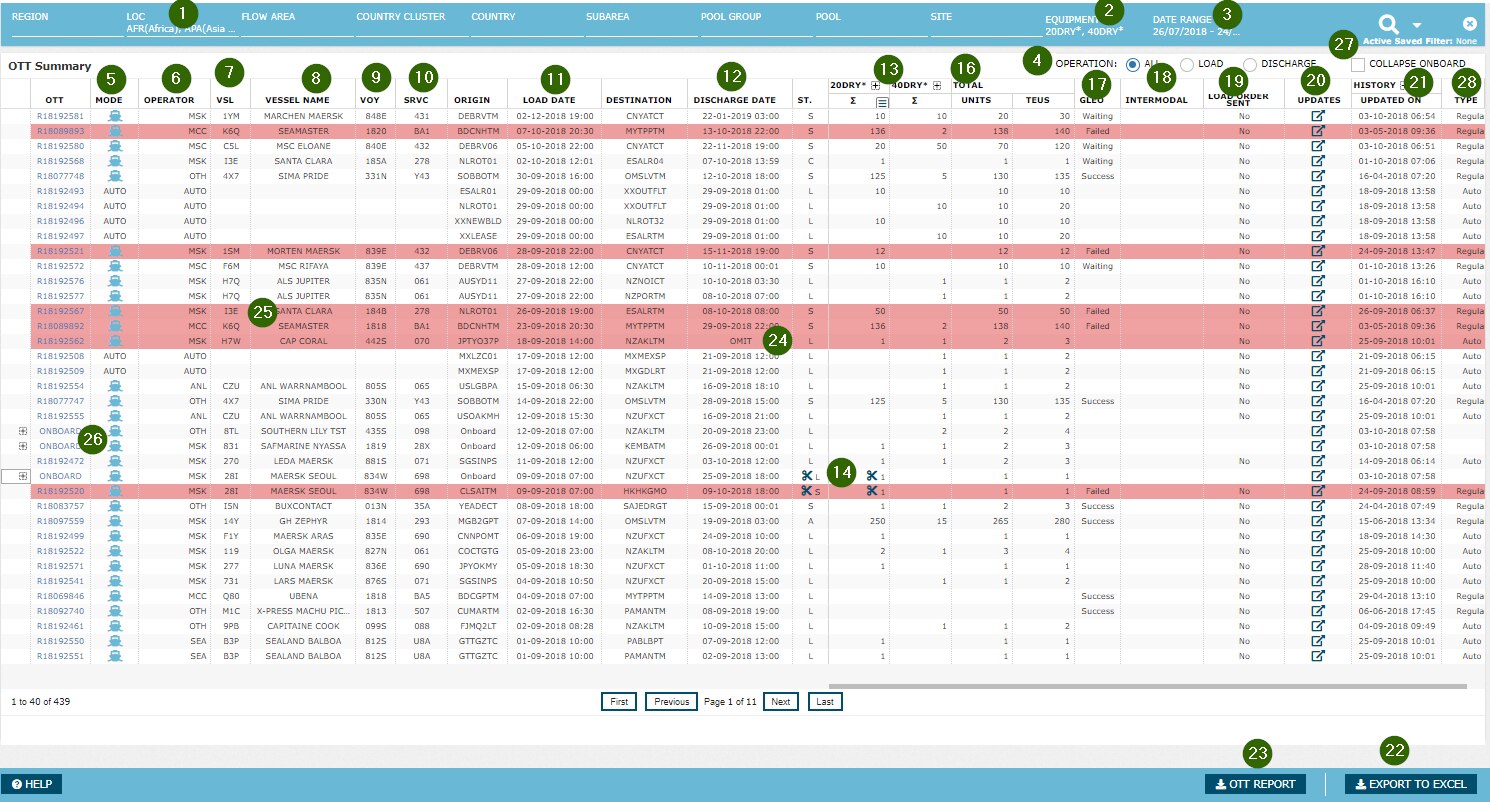
| Feature | Description | |
|---|---|---|
| 1 | Geo Selector | The user can select one or more geographies at a time on this screen. Standard geo selector features available. See section Using the Global Filter for more details. |
| 2 | Equ Selector | The user can select one or more equipment types, and can choose to combine equipment types. Standard equ selector features available. See section Using the Global Filter for more details. For OTT Summary, the system automatically selects all equipment types on this selector as this is the common behavior for all users. |
| 3 | Date Range | The user can choose any date range. Default is from Today-7 to Today+28 days. When the user fetches data on OTT Summary, the system checks date range match as per the following criteria: (Start Date <= OTT Load Date <= End Date ) OR (Start Date <= OTT Discharge Date <= End Date) OR (Start Date >= OTT Load Date AND OTT Discharge Date >= End Date) |
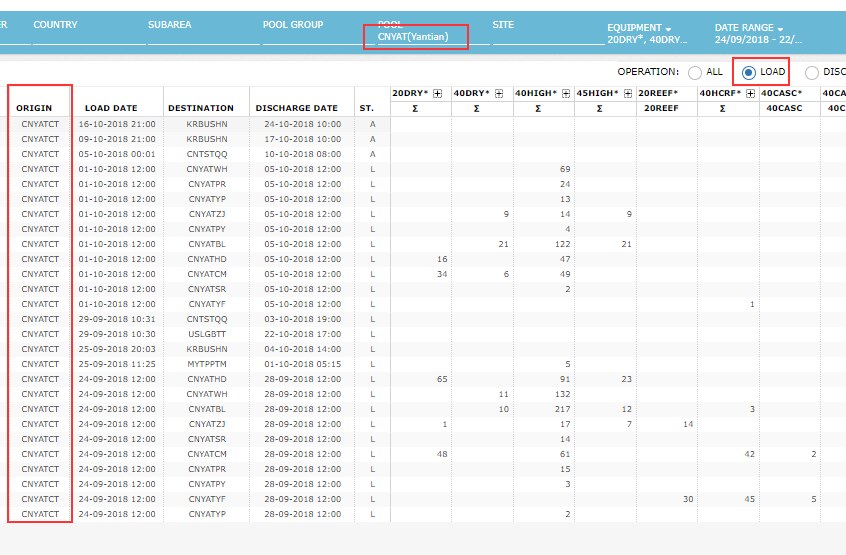
| 4 | Operation Sub-filter | The system provides radio button group labeled "Operation" on top of the grid on OTT Summary. This filter works in conjunction with the date range selector and filters the list according to load/discharge operations. Examples:
When the user fetches data on OTT Summary grid, the system sets Operation radio button group to "All" by default. |
| 5 | Mode | GSIS-sourced value for GSIS OTTs and corridor mode for corridor OTTs. For inland OTTs created automatically by ROCK (See RKEM Processing (CDS) for details), the system sets it to Auto, as the transport mode is normally not discernible in RKEM moves. |
| 6 | Operator | Same as in OTT schedules list. See Create/Edit an OTT |
| 7 | Vessel Code | Same as in OTT schedules list. See Create/Edit an OTT |
| 8 | Vessel Name | Same as in OTT schedules list. See Create/Edit an OTT |
| 9 | Voyage | Same as in OTT schedules list. See Create/Edit an OTT |
| 10 | SRVC | Same as in OTT schedules list. See Create/Edit an OTT |
| 11 | Load Date | The Origin Arrival date/time (Origin ETA) as per the schedule selected for the OTT. Origin ETA is considered as the Load Date since this is the date/time where the empty equipment can be assumed out of stock, before Load operations have started, as the vehicle (vessel, truck, rail, etc.) has arrived the origin site. As soon as the system receives Actual Arrival from GSIS, it updates Load Date field with Actual. The field reads "OMIT" if the vessel is omitting the Origin Site. |
| 12 | Discharge Date | The Destination Departure date/time (Destination ETD) as per the schedule selected for the OTT. Destination ETD is considered as the Discharge Date since this is the date/time where the empty equipment can be safely assumed in stock, after Discharge operations have completed and the vehicle (vessel, truck, rail, etc.) has left the destination site. As soon as the system receives Actual Departure from GSIS, it updates Discharge Date field with Actual. The field has the value "OMIT" if the vessel is omitting the Destination Site. |
| 13 | Equ Figures | Whether an OTT is displayed on the grid or filtered out is related to the equ figures on the OTT. If an OTT has any of S, A, L or D figures positive values on the equ nodes matching the user's equ filter selection on the Global Filter, the system shows that OTT on the grid. The equ figures displayed on the grid, on the other hand, are closely related to OTT status:
|
| 14 | Split Icon | This feature is removed. |
| 15 | TEU Groups | If the user has selected TEU groups on the Global Filter on the equ selected, the system displays equ figures on the TEU group(s) the user has selected instead of equ type/subtype columns |
| 16 | Total Units & TEU | To the right hand side of the equ figure/TEU group columns, the system displays two columns displaying the total units and TEU volume on each OTT. Equipment types that start with 20 (e.g. 20DRY) are considered 1 TEU and the ones starting with 40 or 45 (e.g. 40DRY) are considered 2 TEU. |
| 17 | Display Intermodal Status | OTT Summary grid features a column which displays the value of Intermodal Status on corridor OTT. As the feeds to send OTTs to intermodal systems are not set up, the field reads "No" for all inland OTTs as of writing this. |
| 18 | Display Load Order Status | OTT Summary grid features a column which displays the value of Load Order status on the OTT. See OTT States for details on this flag. |
| 19 | Updates | Displays OTT log in a pop up when clicked |
| 20 | OTT History Information | When the system displays the OTT summary grid, it features History expandable column which includes the date/time of the last update on the OTT when collapsed. When the user expands this column, the system displays six columns: Inserted By, Inserted On, Approved By, Approved On, Updated By, Updated On. For Update By and Updated On columns, note that the system always displays the latest human update, even if the last update on the OTT might have been done by the system. |
| 21 | Export to Excel | When the user presses the button the system displays a pop up window suggesting the excel file download, using the browser's standard method. The excel export includes all the records matching the query on the grid (disregarding pagination) and all the columns currently visible on the grid. Example file below: Rock_OTTSummaryExportToExcel_7d098bcf-8005-4a26-902f-9d2eb958d57d.xlsx |
| 22 | OTT Report | When the user presses the button the system displays a pop up window suggesting the excel file download, using the browser's standard method. The excel export includes all the OTTs matching the query on the grid (disregarding pagination) with the schedule columns, equ type, equ subtype, and columns for S, A, L, D figures for each OTT. Example file below: |
| 23 | OMIT Case | If there is a GSIS OTT with vessel OMIT case, the system displays the OTT row with red Background color. See Reconciliation to read more on OMIT |
| 24 | GSIS Mismatch Case | If there is a GSIS OTT with vessel mismatch case, the system displays the OTT row with red Background color. See Reconciliation to read more on Mismatch |
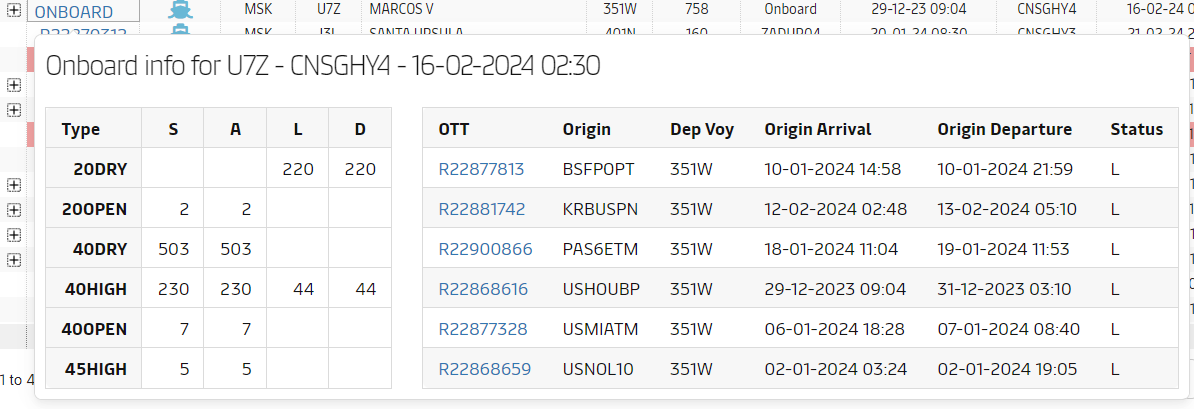
| 25 | Onboard Group | When there are more than one OTTs discharging to the same site on the same call on the same vessel, they might be grouped under a collapsible Onboard row. More information is shown as a popup
|
| 26 | Collapse Onboard | Option for the user to view Onboard groupings all collapsed or all expanded. |
| 27 | Type | The system sets OTT Type to "Regular" for the OTTs that are planned by the users or created as per user suggestions from PLP. The system sets this to "Auto" for the OTTs which the system creates automatically when it finds actual RKEM load/gate-in/on-rail moves without being able to reconcile it to a planned OTT. (See RKEM Processing (CDS) section to see how the system creates auto OTTs) |
Attachments:
 Rock_OTTSummaryExportToExcel_7d098bcf-8005-4a26-902f-9d2eb958d57d.xlsx (application/vnd.openxmlformats-officedocument.spreadsheetml.sheet)
Rock_OTTSummary_6364d617-b6df-4677-9d0b-a84e6c20438a.xlsx (application/vnd.openxmlformats-officedocument.spreadsheetml.sheet)
image2018-9-21_16-5-35.png (image/png)
Rock_OTTSummaryExportToExcel_7d098bcf-8005-4a26-902f-9d2eb958d57d.xlsx (application/vnd.openxmlformats-officedocument.spreadsheetml.sheet)
Rock_OTTSummary_6364d617-b6df-4677-9d0b-a84e6c20438a.xlsx (application/vnd.openxmlformats-officedocument.spreadsheetml.sheet)
image2018-9-21_16-5-35.png (image/png)
 Onboard Logic v08.vsd (application/octet-stream)
Onboard Logic v08.pdf (application/pdf)
image2018-10-1_16-20-20.png (image/png)
Onboard Logic v08.vsd (application/octet-stream)
Onboard Logic v08.pdf (application/pdf)
image2018-10-1_16-20-20.png (image/png)
 image2018-10-1_16-20-30.png (image/png)
 image2018-10-3_9-58-41.png (image/png)
 image2018-10-3_11-48-53.png (image/png)
 onboard-ott-popover.png (image/png)
