Introduction
The Weekly Inland Capacity Screen is used to manage the empty flows on inland corridors in terms of capacity limits. The screen can be used to set capacity limits on corridors per week and per equipment type, and compare the capacity limits to currently planned flows (i.e OTTs). The weekly capacity constraints are used by PLP to optimise the inland flows, by respecting the weekly capacity settings. The active corridors used by PLP and their default capacity settings are managed in the PLP Inland Corridors screen.
To manage the weekly capacity limits, the relevant corridors must be selected by user, based on the selected Geo from the global filter. The relevant corridors are populated into the grid, with the default data from PLP Inland Corridors screen. The default capacity settings on the corridor (i.e. "Base TEU Capacity", "Absolute max TEU Capacity" or "Slack max Capacity") is inherited from the PLP Corridors Screen. To manage the capacity limits from week to week, the user can override the default setting and provide an alternative. Additionally, the currently planned flows on the corridors are also shown into a single weekly number (i.e. aggregation of OTTs), to allow comparison between the planned flows and the capacity limit.
Contents
Page Access
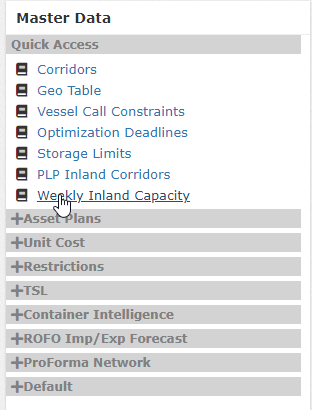
The Page is accessible from the sidebar using the "Master Data" entry point. From Master Data landing page, the "Weekly Inland Capacity" link can be found in the Quick Access. For specific permissions in the site, see User Roles & Permissions.
Step 1 |
|
Step 2 |
|

Overview
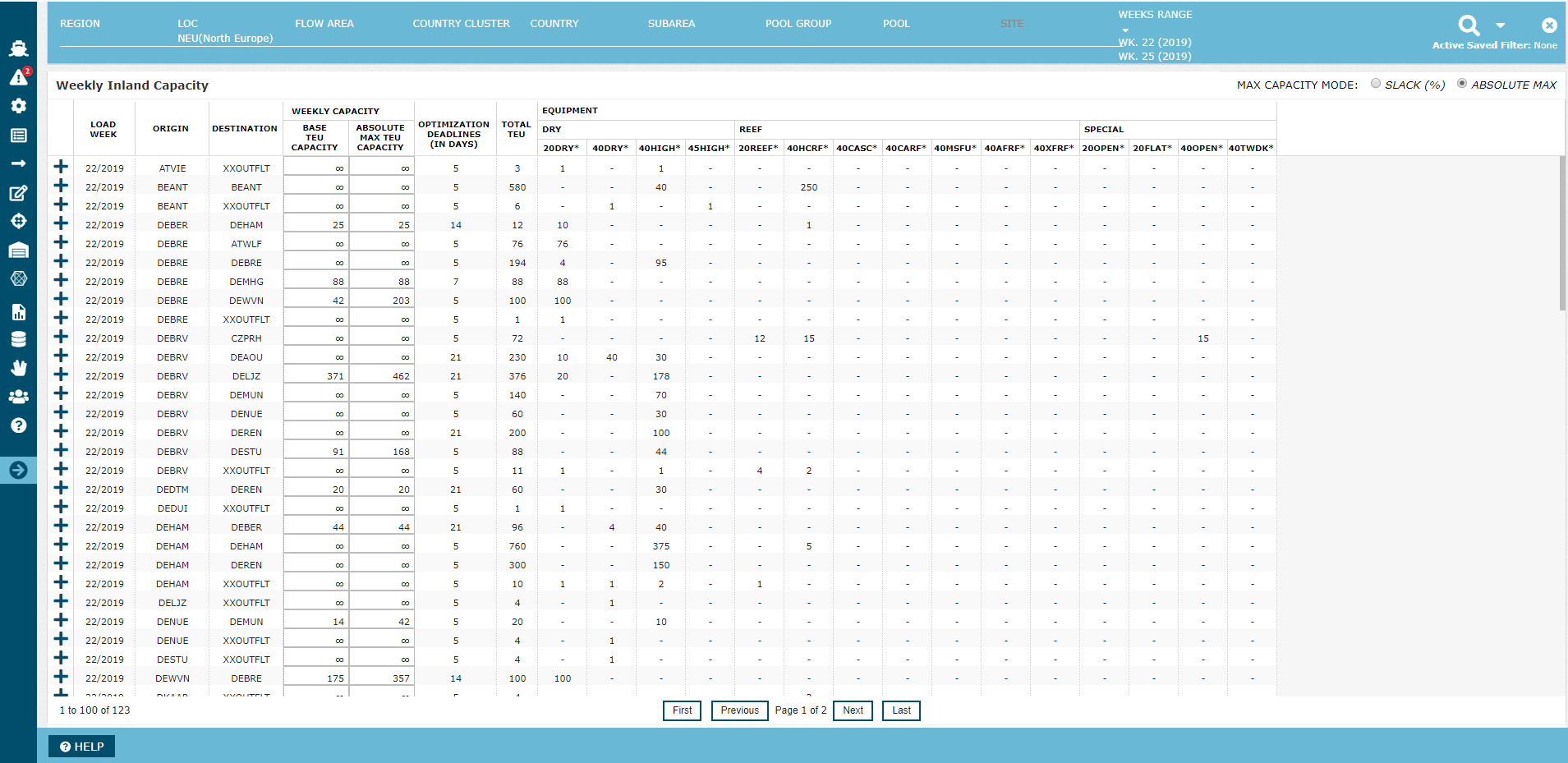
When a Geo is selected, in this case LOC; NEU and a report is pulled the below page will appear. The report consists of a "corridor flow list" sorted based on Load Week.
The column "Weekly Capacity" enables the user to manage the flexibility of a corridors capacity at a weekly level by adjusting either Base TEU capacity, Absolute Max TEU Capacity or Slack TEU Capacity for each flow, directly in the grid. The report also shows the optimization deadline which is managed in PLP Inland Corridors. The optimization deadline is referring to a number of days before loading and when the day is reached PLP will no longer optimize and suggest flows on the corridor. Instead, the planned flow is taken as a fixed input.
Total TEU is the total volume planned on the corridor and in the section "Equipment" the user will find the planned volumes detailed into planned equipment types.
Features
The important features included in the grid are:
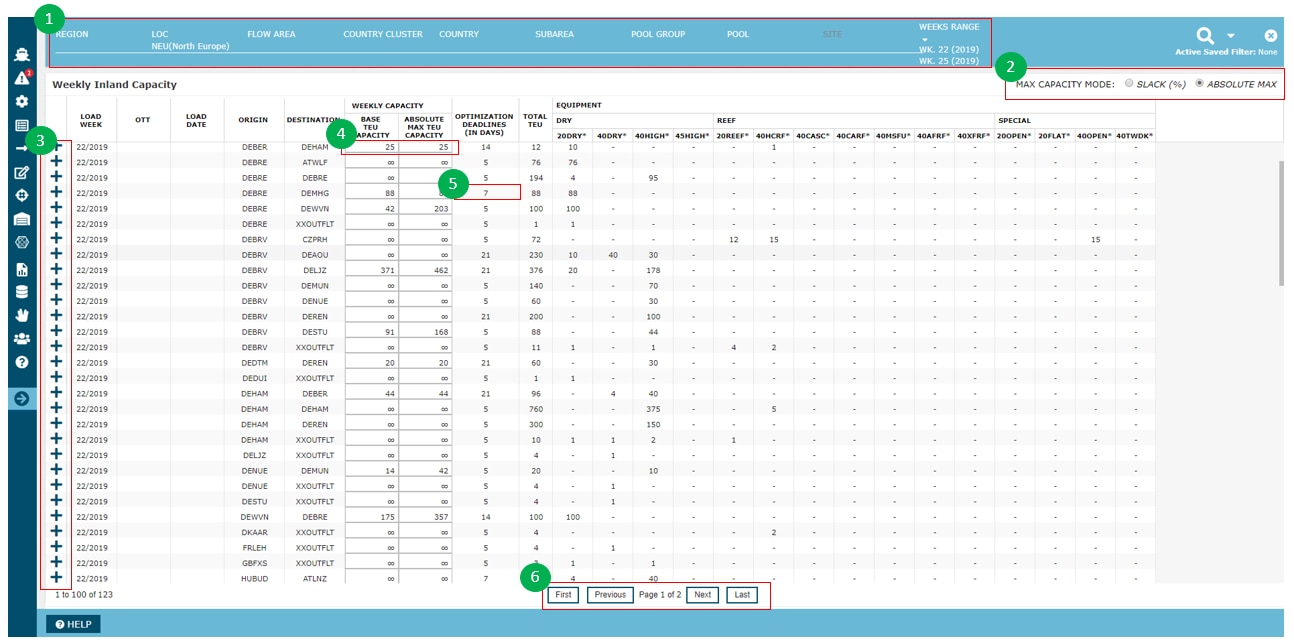
The highlighted features from the above screenshot are described in the following table.
| Feature | Description | |
|---|---|---|
| 1 | Geo | The user can use the geo filter to drill down from greater to small geo levels (Region to Site level). Weeks Range can be used as an input to restrict the report to Flows within a certain week range. The default values is from "today's date" and three weeks forward. |
| 2 | Corridor Flexibility | The capacity flexibility on each of the corridors is specified in the column "Slack / Max TEU Capacity". The flexibility on a corridor means that the PLP optimiser can suggest flows that exceeds the indicated capacity of the corridor, but not greater than the allowed flexibility. However, exceeds the indicated capacity of the corridor will introduce a penalty in the model, to balance the behavior and only exceed when other options are exhausted. The flexibility can be viewed in the grid from two perspectives, using the radio buttons in the top of the grid.
|
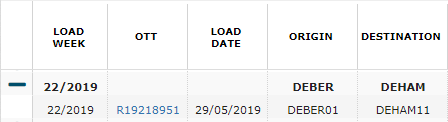
| 3 | Display planned OTTs | By expanding individual flows all OTTs planned to the flow in that week will be displayed together with the OTT no. and Load Date. Equipment type and planned volume will furthermore be displayed in the Grid enabling the user to analyse if changes to capacity and/or planned volumes should be made.
|
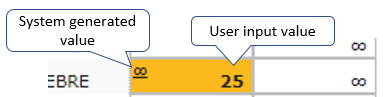
| 4 | Modifying Cells | The capacity flexibility can be modified in the cell. When the user modifies any input for a corridor, the screen will highlight the cell where change was done. The highlighted cell will also show 'system generated value' in a smaller font at the top-left of teh cell and user input value in larger font at the right of the cell.
|
| 5 | Optimization Deadline | This field specifies the cut-off deadlines in days. When planned flows on the corridor reaches this deadline, PLP will no longer optimise and suggest flows on the corridor. Instead, the planned flow is taken as a fixed input. |
| 6 | Pagination | The grid features pagination controls |

Attachments:
 image2018-8-22_16-51-12.png (image/png)
 image2019-3-20_11-5-31.png (image/png)
 image2019-5-22_9-41-30.png (image/png)
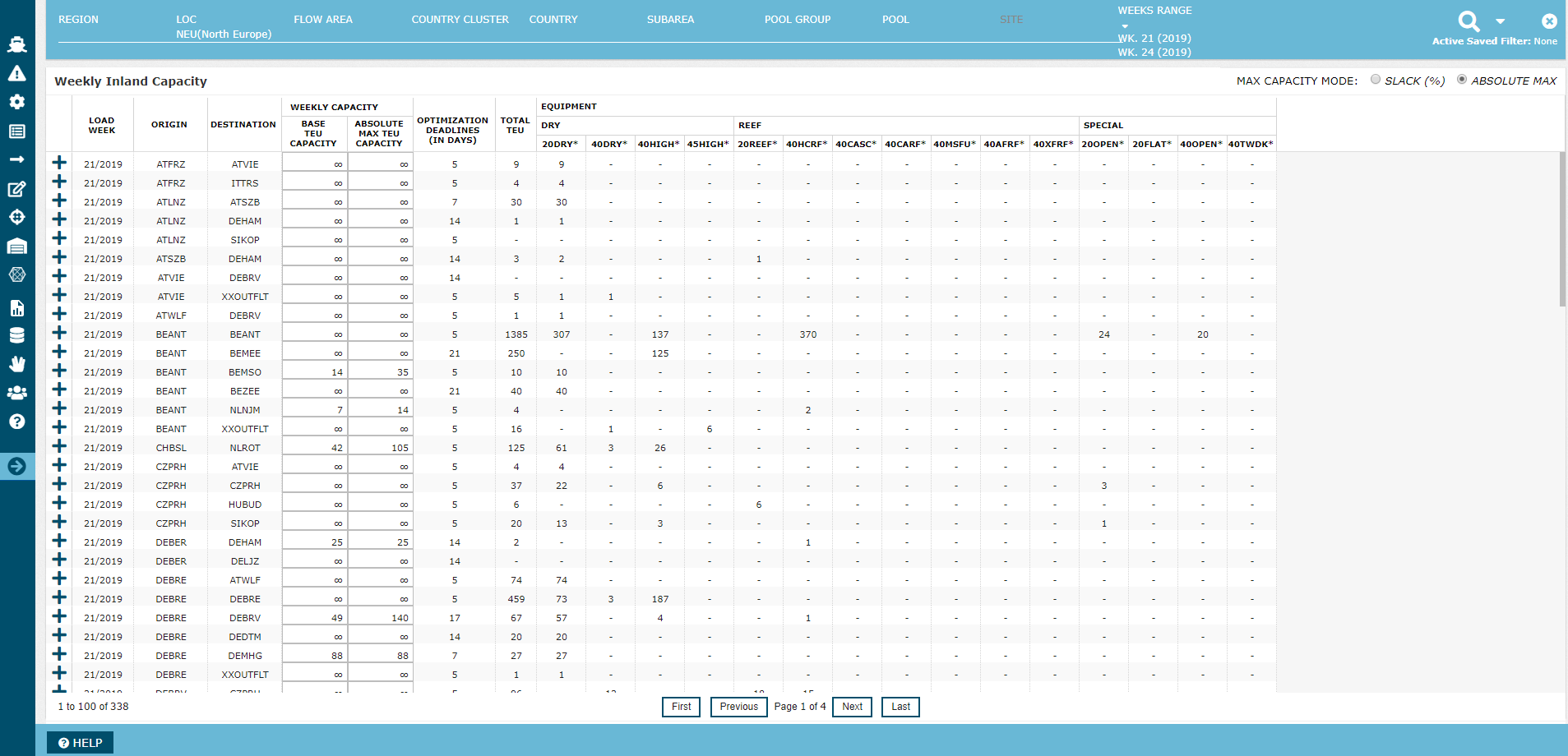 image2019-5-28_11-32-38.png (image/png)
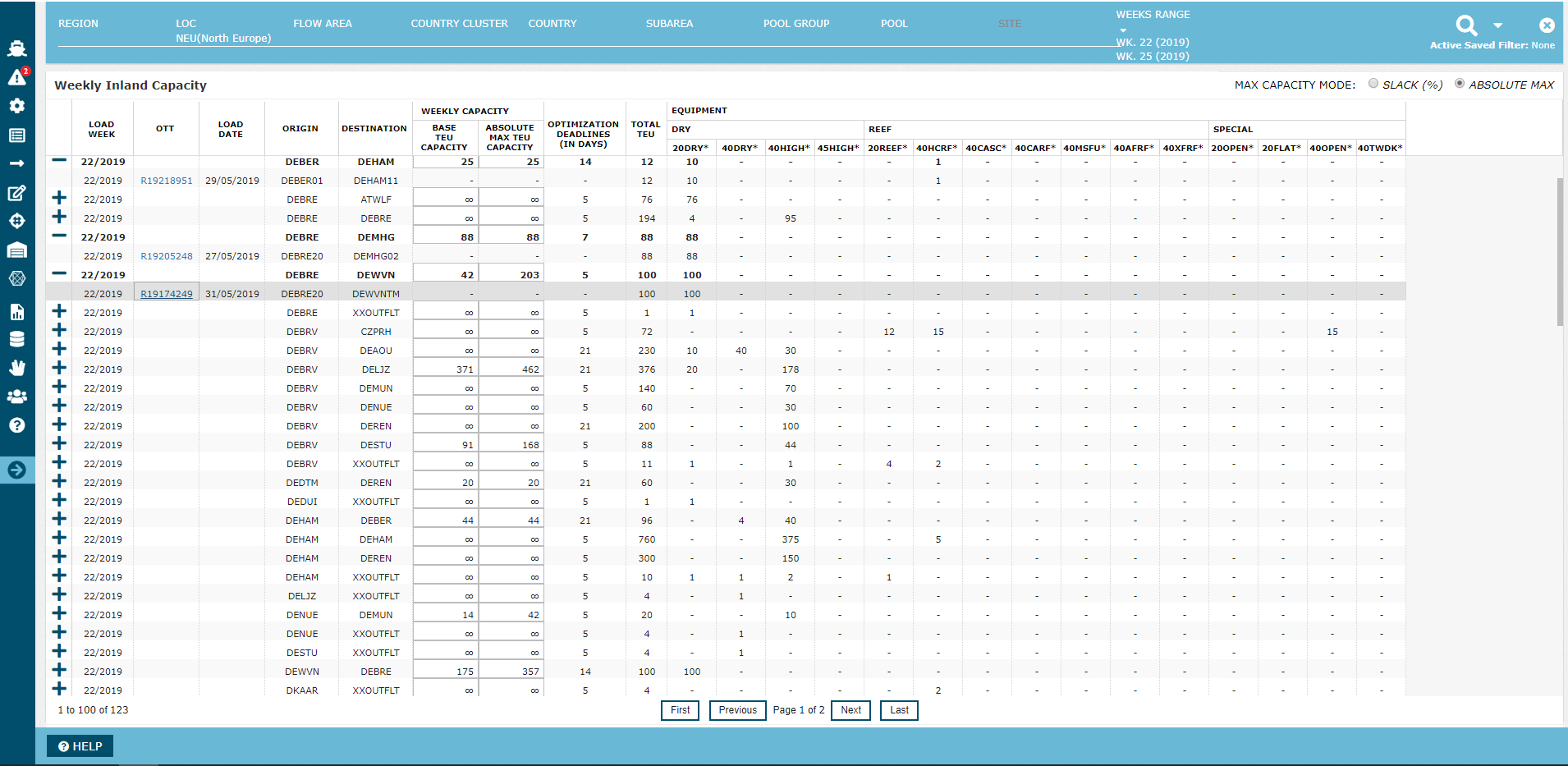 image2019-5-28_11-33-36.png (image/png)
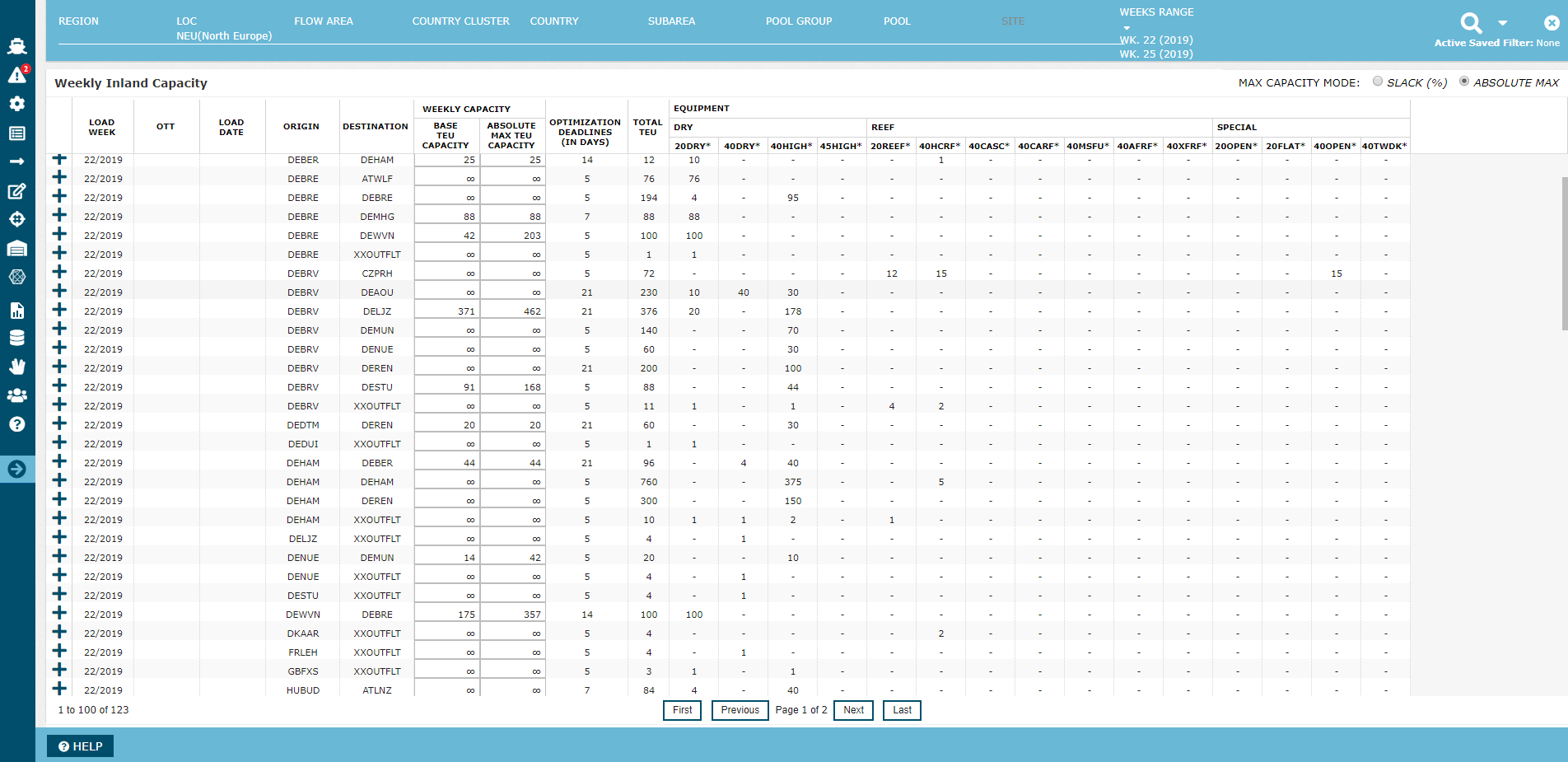 image2019-5-28_11-42-56.png (image/png)
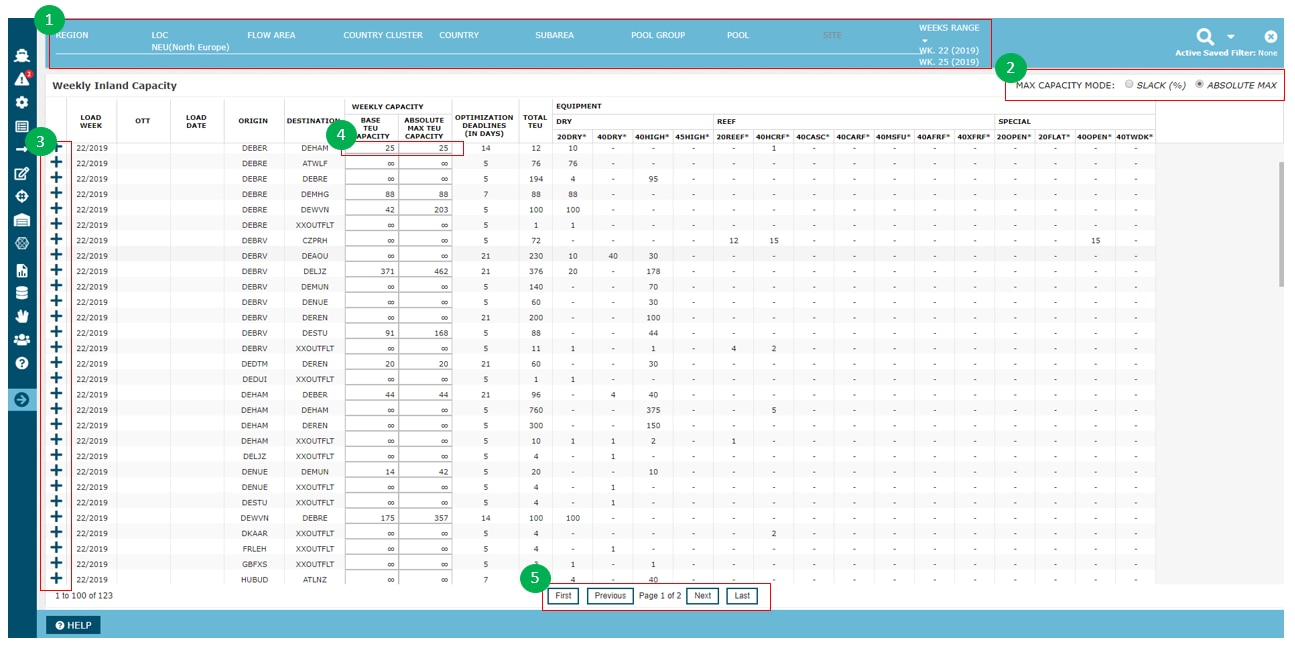 image2019-5-28_11-55-37.png (image/png)
 image2019-5-28_11-58-57.png (image/png)
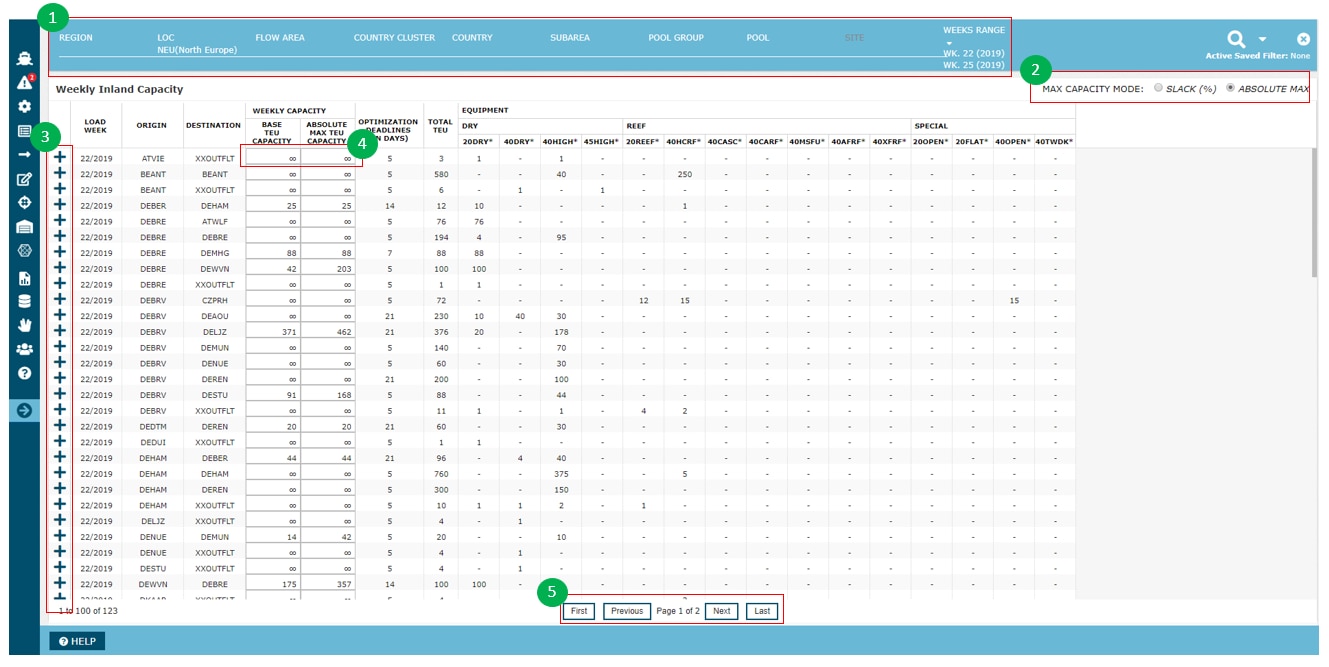 image2019-5-28_12-10-32.png (image/png)
 image2019-5-28_12-13-36.png (image/png)
 image2019-5-28_14-0-6.png (image/png)
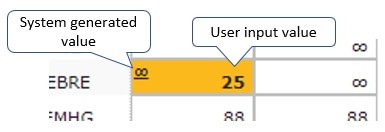 image2019-5-28_14-0-55.png (image/png)
 image2019-6-3_9-24-12.png (image/png)
