Introduction
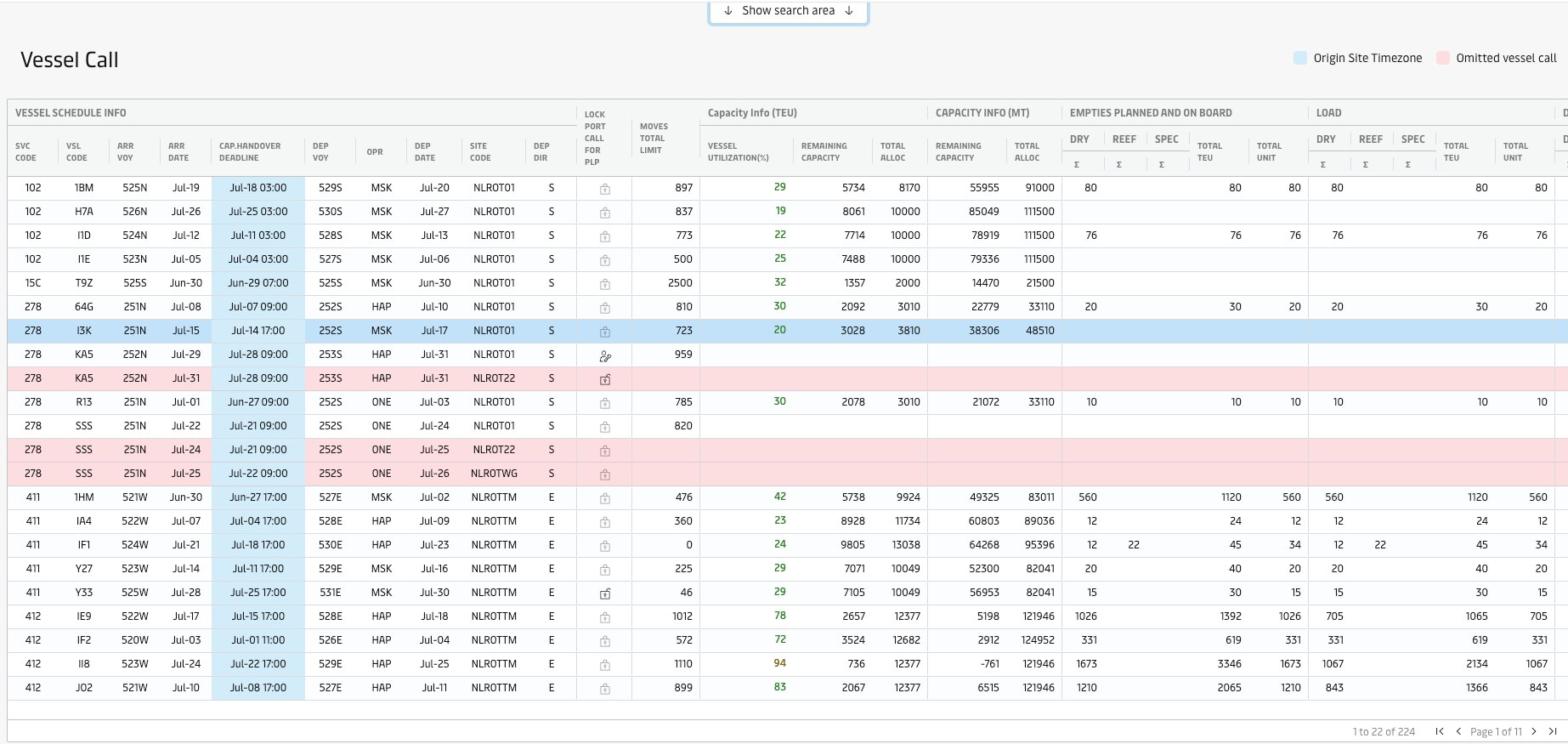
The purpose of the Vessel Call screen is to provide the user with a tool to manage the PLP optimiser from a port call perspective. The screen gives users a complete overview of vessel calls, including planned empty flows to each individual call and relevant operational constraints. Here users can manage call-specific port call locks.
Page Access
This page is accessible from the sidebar using the ‘Vessel Call’ entry point. For specific permissions in the site, see User Roles & Permissions
Overview
Search Criteria
To pull a report, the user must select the relevant geo and/or service and date range for the report.

Geo | The user can use the geo filter to drill down from greater to small geo levels (Region to Site level). |
Service | This input is optional and can be used by users to restrict the report to vessel calls on a specific service code. |
Date range | This input can be used by users to restrict the report to vessel calls in ports where
The default value is from “today’s date” and three weeks forward. |
Screen Components
When pulling a report in the screen following data is presented based on geo and/or service and selected date range.
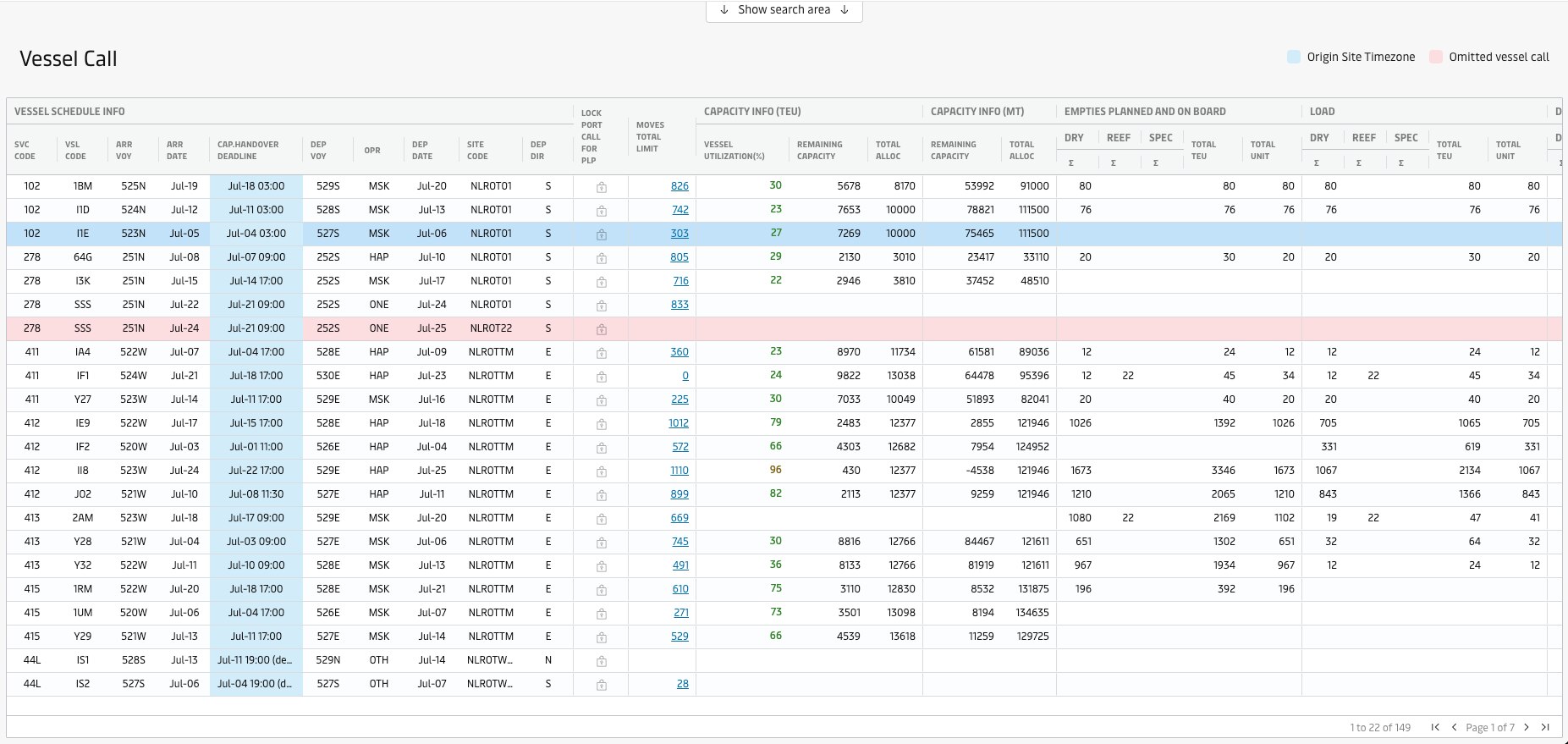
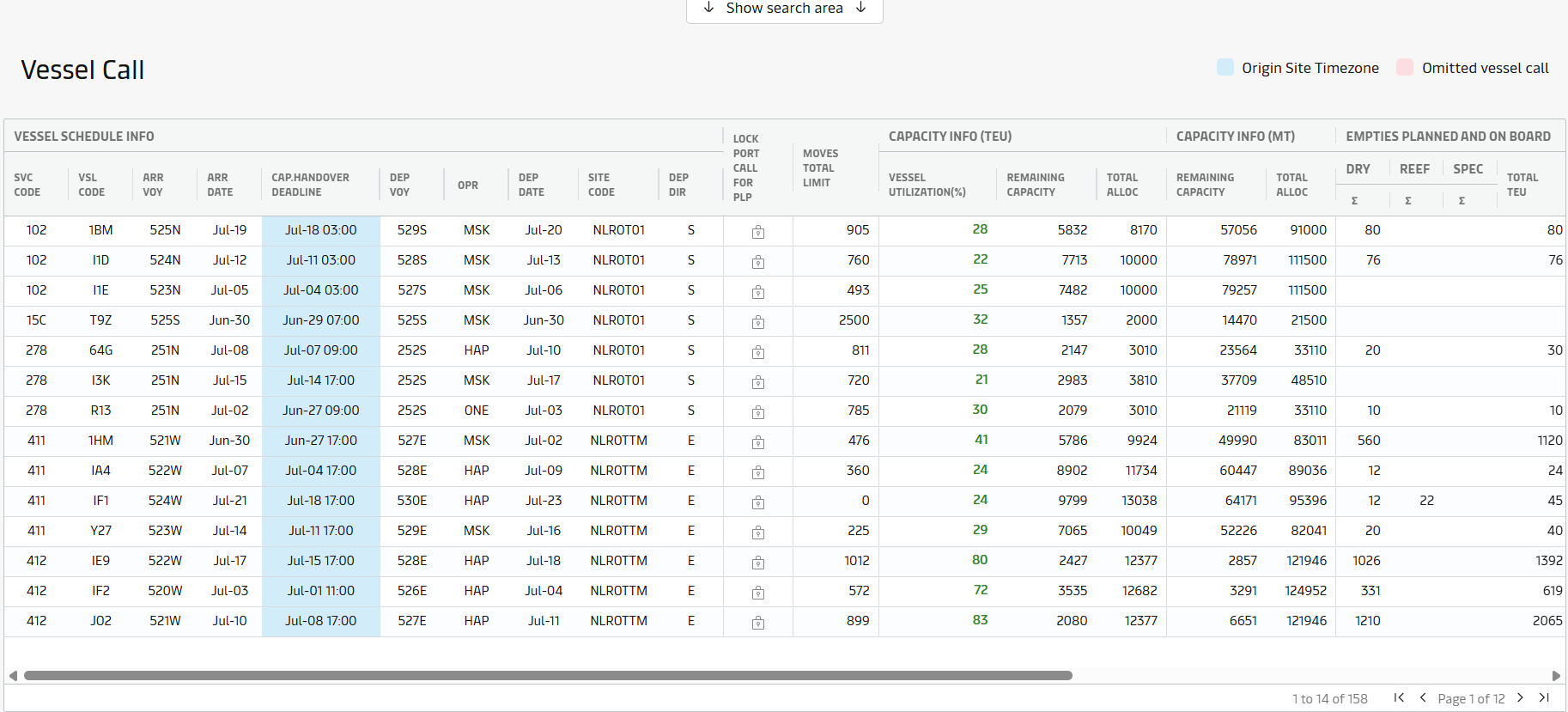
The vessel call screen is divided into the following column-sections in the grid.
Section | Description |
|---|---|
Vessel Schedule Info | Vessel schedule info displays all relevant data needed to identify a unique vessel port call. The columns are purely informational and cannot be edited. The user can filter and sort on all columns. 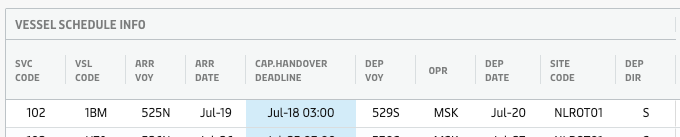
|
Moves Total Limit | This specifies the Total Move Count constraints for the vessel call. The move limits are sourced from another team. It is based on historical data. Move limits are used by PLP when planning the OTTs. It is also used to show remaining moves to users during manual planning. Clicking on it will open a move limits explainer dashboard page in a new tab where more information is provided for the selected Moves Total Limit. 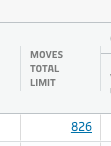 |
Capacity Info (TEU) | Vessel utilization (%) is the utilization % based on TEU. Remaining capacity is the available TEU capacity to plan against. Total alloc is the total TEU allocation. 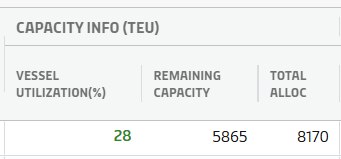 |
Capacity Info (MT) | Remaining capacity is the available MT capacity to plan against. Total alloc is the total MT allocation. 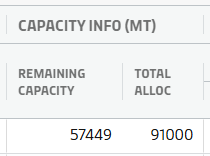 |
Empties planned and on board, Load & Discharge | The sections, "On Board", "Load" and "Discharge" display information that cannot be edited by user in the grid and will automatically be populated based on OTT information and below logic:
 |
 The full vessel rotation, spanning calls across multiple geos, will only be shown if the user has added service codes to the search criteria. Otherwise, calls shown in the screen is restricted to the specified geo.
Practical Use
Lock port call for PLP
If the user wants to lock a port call for optimisation, it can be done by clicking the icon displayed for each port call in the Lock port call for PLP column.
Icon | Optimisation State of Vessel Call |
|---|---|
 | Vessel Call is Unlocked |
 | Vessel Call is Locked Manually |
 | Vessel Call is Locked automatically |
Hovering the mouse over these lock icons will present a tooltip with some additional information like below:
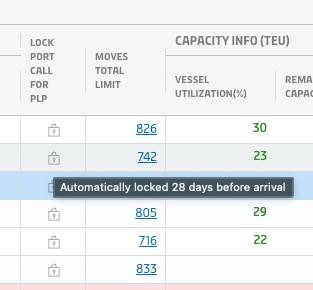
Clicking the icon allows the user to "lock" or "unlock" the vessel call to be optimised. As Optimisation Deadlines are also able to automatically set the vessel call to "locked", in this case actions are restricted. The below table specifies the state change options available to users, based on the Optimisation Deadline.
State | Optimisation State of Vessel Call | Optimisation Deadline Passed? | State change actions |
|---|---|---|---|
1 | Vessel Call is Unlocked | No | User can manually lock the Vessel Call by clicking the icon |
2 | Vessel Call is Locked Manually | No | User can manually unlock the Vessel Call by clicking the icon |
3 | Vessel Call is Locked automatically | Yes | User cannot unlock manually by clicking the icon |
Attachments:
 image2018-9-6_15-36-49.png (image/png)
 image2018-9-11_16-41-19.png (image/png)
 image2018-9-11_16-41-53.png (image/png)
 image2018-9-11_16-42-59.png (image/png)
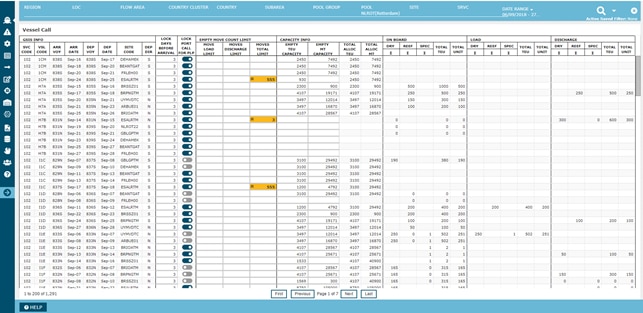 image2018-9-11_16-43-34.png (image/png)
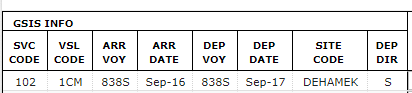 image2018-9-11_16-44-5.png (image/png)
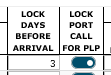 image2018-9-11_16-44-25.png (image/png)
 image2018-9-11_16-44-40.png (image/png)
 image2018-9-11_16-44-48.png (image/png)
 image2018-9-11_16-45-29.png (image/png)
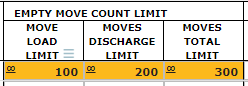 image2018-9-11_16-45-43.png (image/png)
 image2018-9-11_16-45-58.png (image/png)
 image2018-9-11_16-53-11.png (image/png)
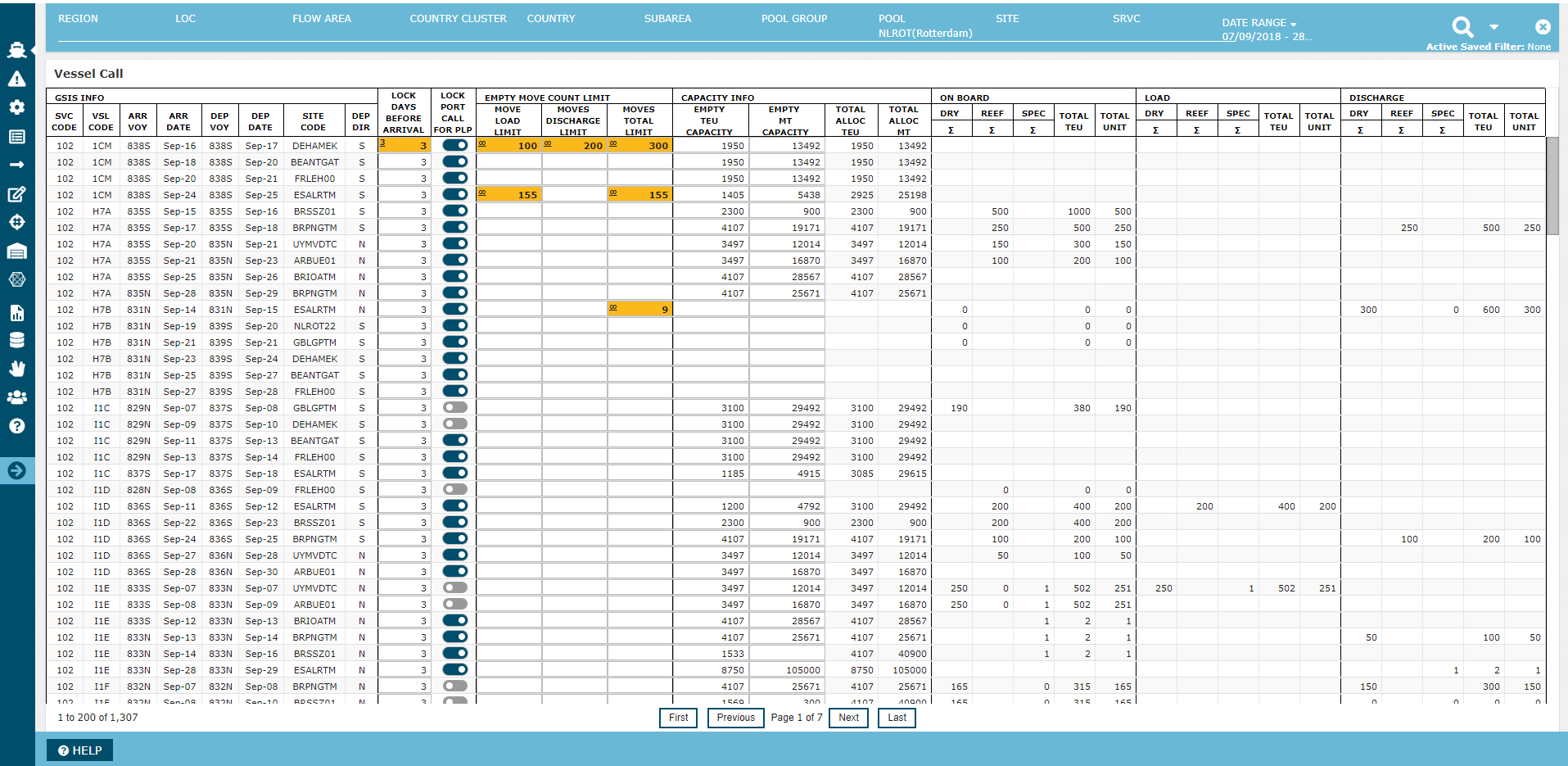 image2018-9-11_16-56-0.png (image/png)
 Screenshot 2025-06-30 at 2.39.31 PM.png (image/png)
 Screenshot 2025-06-30 at 2.46.55 PM.png (image/png)
 Screenshot 2025-06-30 at 2.49.22 PM.png (image/png)
 Screenshot 2025-06-30 at 2.54.34 PM.png (image/png)
 image-20250630-153534.png (image/png)
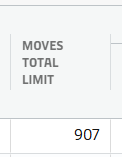 image-20250630-153647.png (image/png)
 image-20250630-153719.png (image/png)
 image-20250630-154156.png (image/png)
 image-20250630-155603.png (image/png)
 image-20250630-155744.png (image/png)
 image-20250630-155838.png (image/png)
 image-20250630-160403.png (image/png)
 image-20250630-163104.png (image/png)
 Screenshot 2025-07-03 at 11.32.44 AM.png (image/png)
 Screenshot 2025-07-03 at 11.34.18 AM.png (image/png)
 Screenshot 2025-07-03 at 11.40.21 AM.png (image/png)
