Introduction
The purpose of the Move Count Limits library is to drive number of allowed load and discharge move counts for each future vessel call planned by the PLP optimiser. These move counts constraints are used as input in the solver and the flow plan is plan is generated to respect the move count accordingly. Move Count constraints can be applied to each vessel call combination available from relevant GSIS (service/terminal/direction). The screen dictates the default Move Count Limits to be used, but can be overwritten in the screen to manage specific vessel calls, i.e. the "Vessel Call" screen.
Page Access
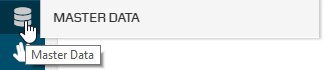
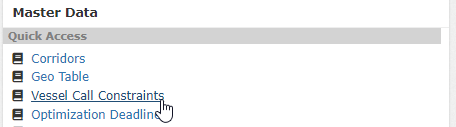
The page is accessible from the sidebar using the "Master Data" entry point. From Master Data landing page, the "Move Count Limits" link can be found in the Quick Access section. For specific permissions in the site, see User Roles & Permissions.
1.
2.
Overview
Search Criteria
The Vessel Call Constraints can only be searched at site level, so the user can narrow the search by giving values in higher geo fields but site needs to be selected to see the data.

Input-Levels
The Move Count constraints can be provided in the screen on two different levels. The population of the grid is specified below for each of the levels.
Geo Filter Criteria | Combine SRVC | Description |
|---|---|---|
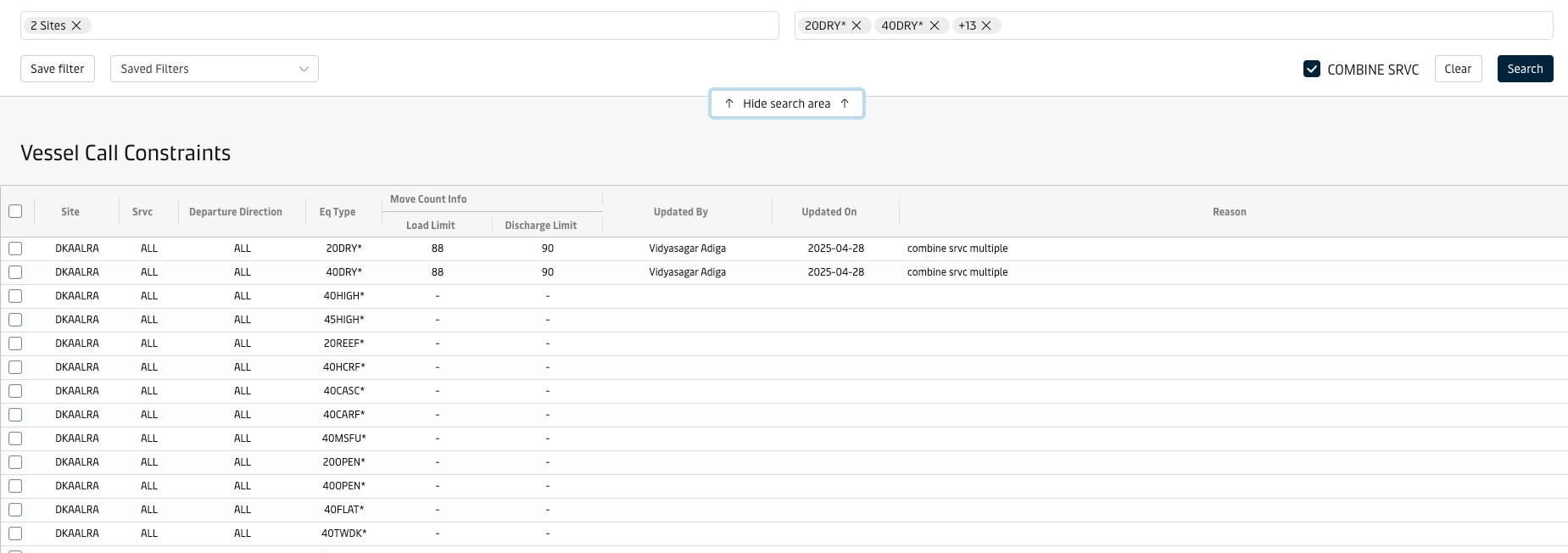
Site | Yes (Checked) | In this input-level, the default move count constraints can be specified for all services to a site. |
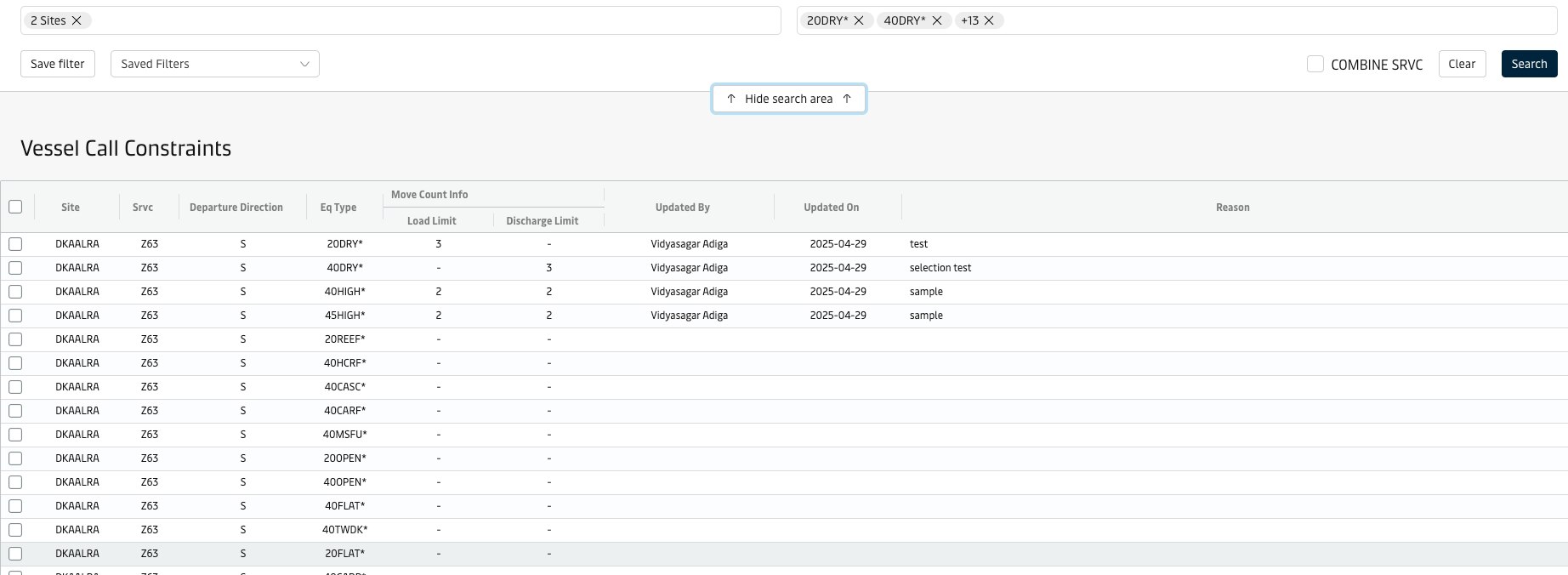
Site | No (Unchecked) | In this input-level, the default move count constraints can be specified for specific services, including service call direction, calling specific sites. |
Site-Service Level
Site level (with 'COMBINED SRVC' checked)
Move Count Limit Constraint Logic
Move count limits for a geo can be setup using two predefined input fields:
Input Field | |
|---|---|
Load Limit | Number of load moves allowed for a geo |
Discharge Limit | Number of discharge moves allowed for a geo |
Reason | Valid reason for setting the limits |
How To
Select Rows
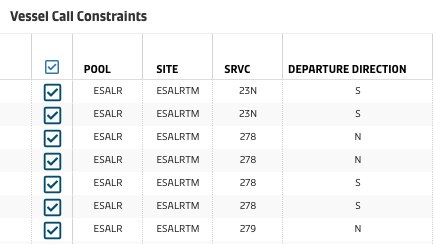
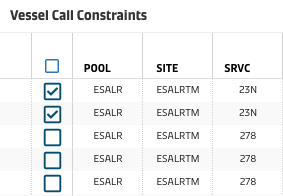
User can select individual rows or select all rows to edit the constraints
Row Actions
Adding/Updating selected Move Count Limit Constraints
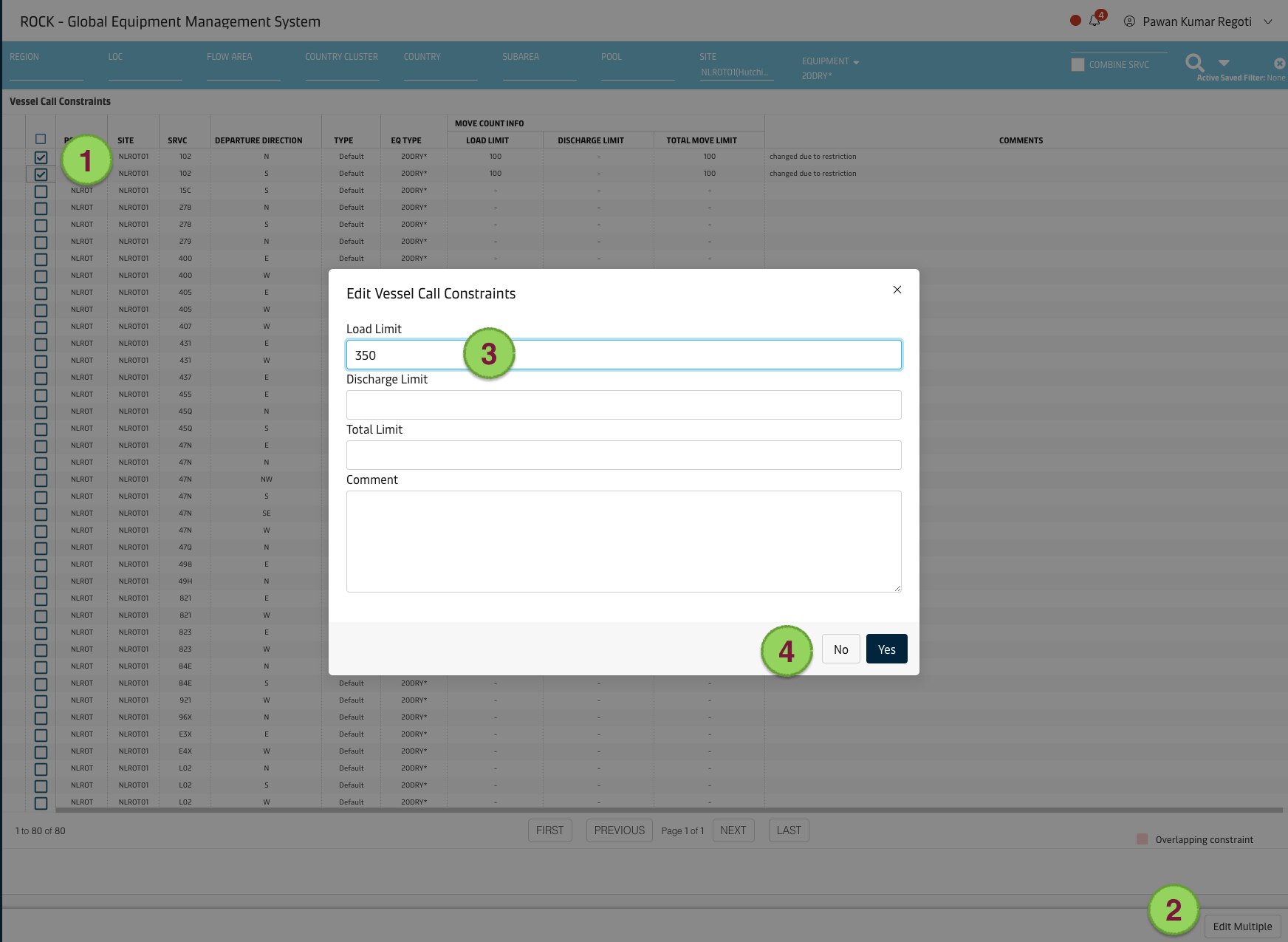
Default limits for specific geo can be setup using following steps:
Select a row or multiple rows using checkbox where user wants to add or update move limits.
Click Edit or Edit Multiple button as shown below and
Enter values for Load, Discharge and Reason.
Click OK to save move count limits.
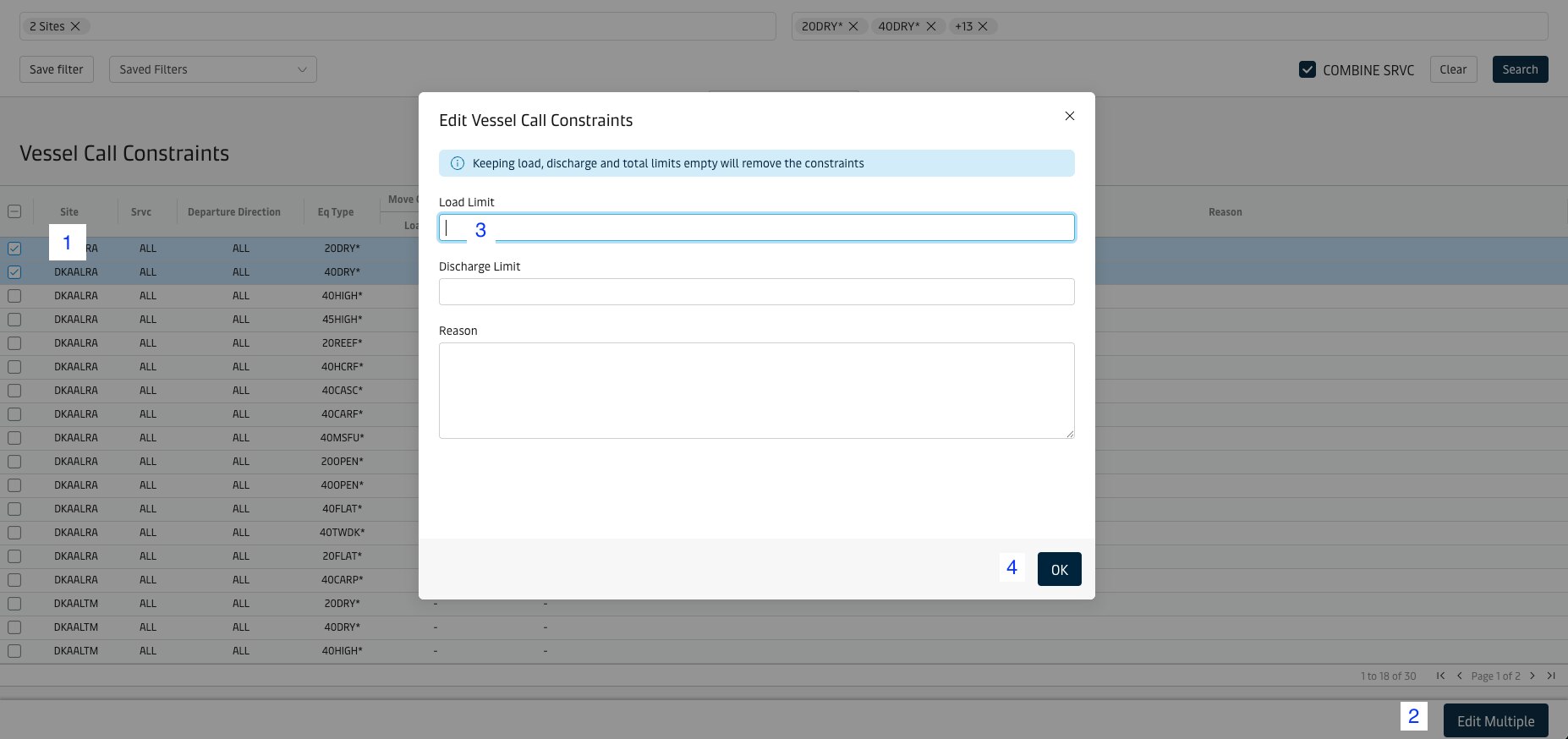
Deleting selected Move Count Limit Constraints
Default limits for specific geo can be setup using following steps:
Select a row or multiple rows using checkbox where user wants to delete move limits.
Click Edit or Edit Multiple button as shown below and
Keep Load, Discharge and reason fields empty.
Click OK to save move count limits. (This will remove the move limits for selected rows)
Attachments:
 image2018-8-22_16-51-12.png (image/png)
 image2018-8-22_16-53-42.png (image/png)
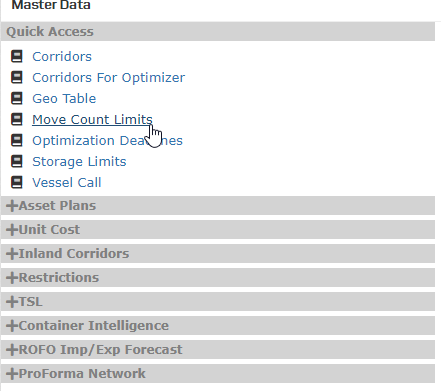 image2018-8-24_13-59-7.png (image/png)
 image2018-8-24_14-10-46.png (image/png)
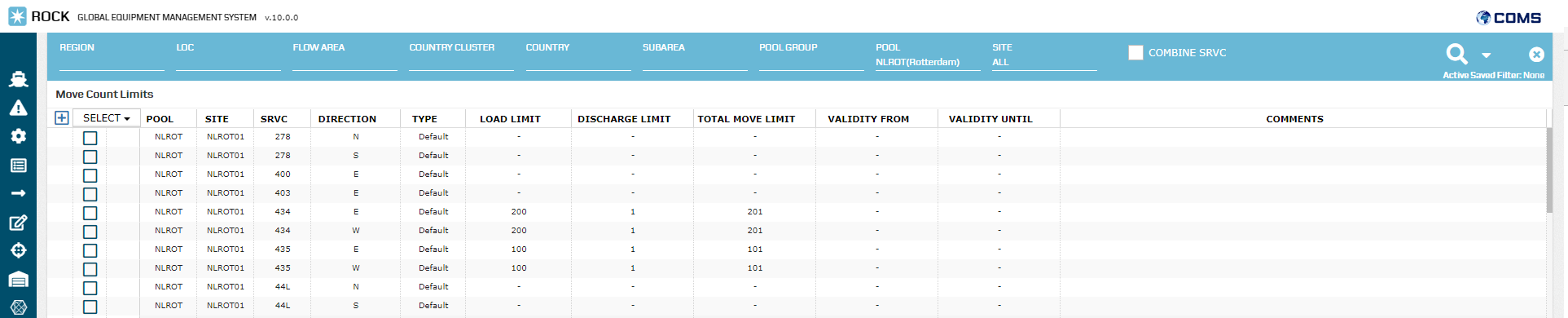 image2018-8-24_15-0-34.png (image/png)
 image2018-8-24_15-2-46.png (image/png)
 image2018-8-24_15-5-7.png (image/png)
 image2018-8-24_15-28-36.png (image/png)
 image2018-8-27_12-35-11.png (image/png)
 image2018-8-27_12-35-53.png (image/png)
 image2018-8-27_12-54-1.png (image/png)
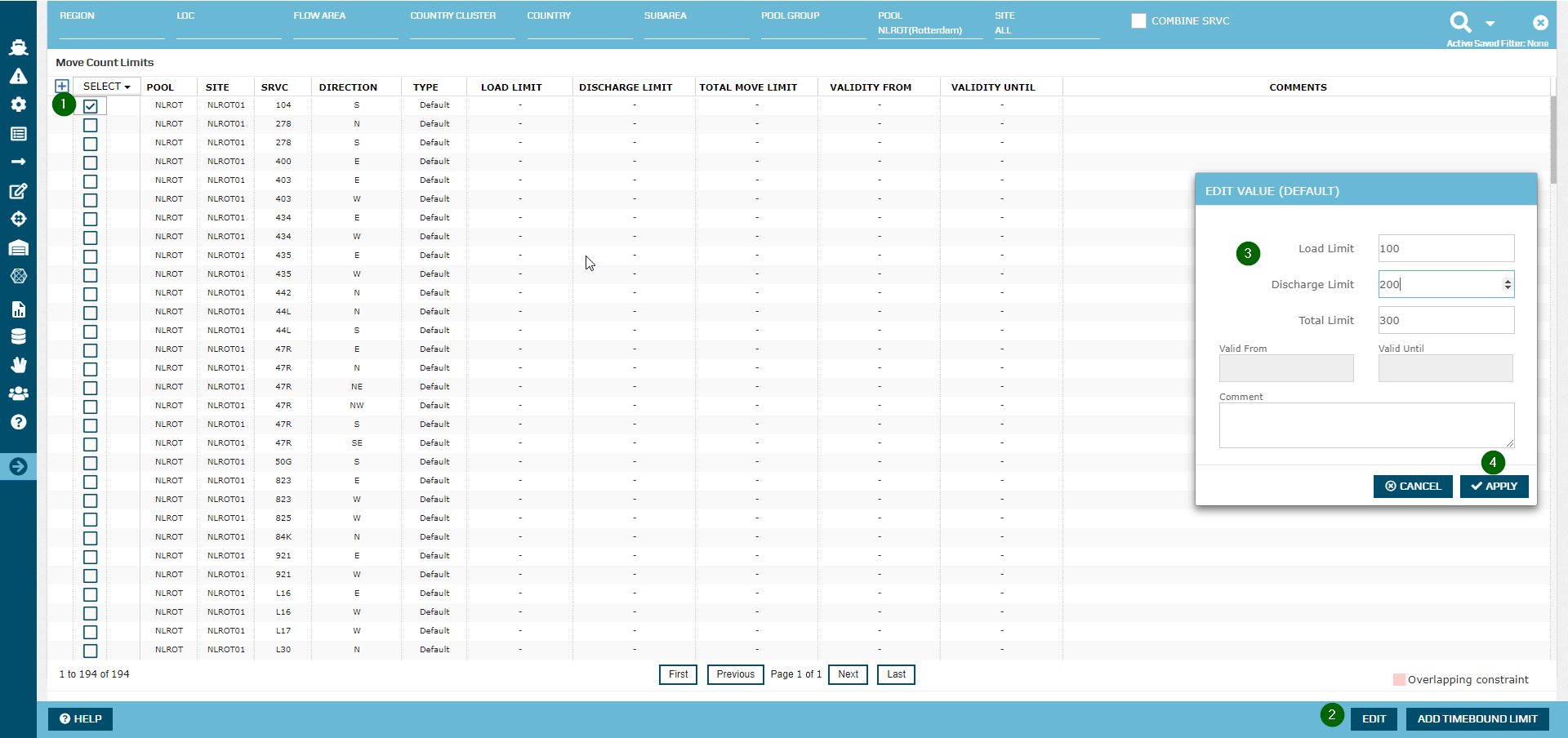 image2018-8-27_17-11-17.png (image/png)
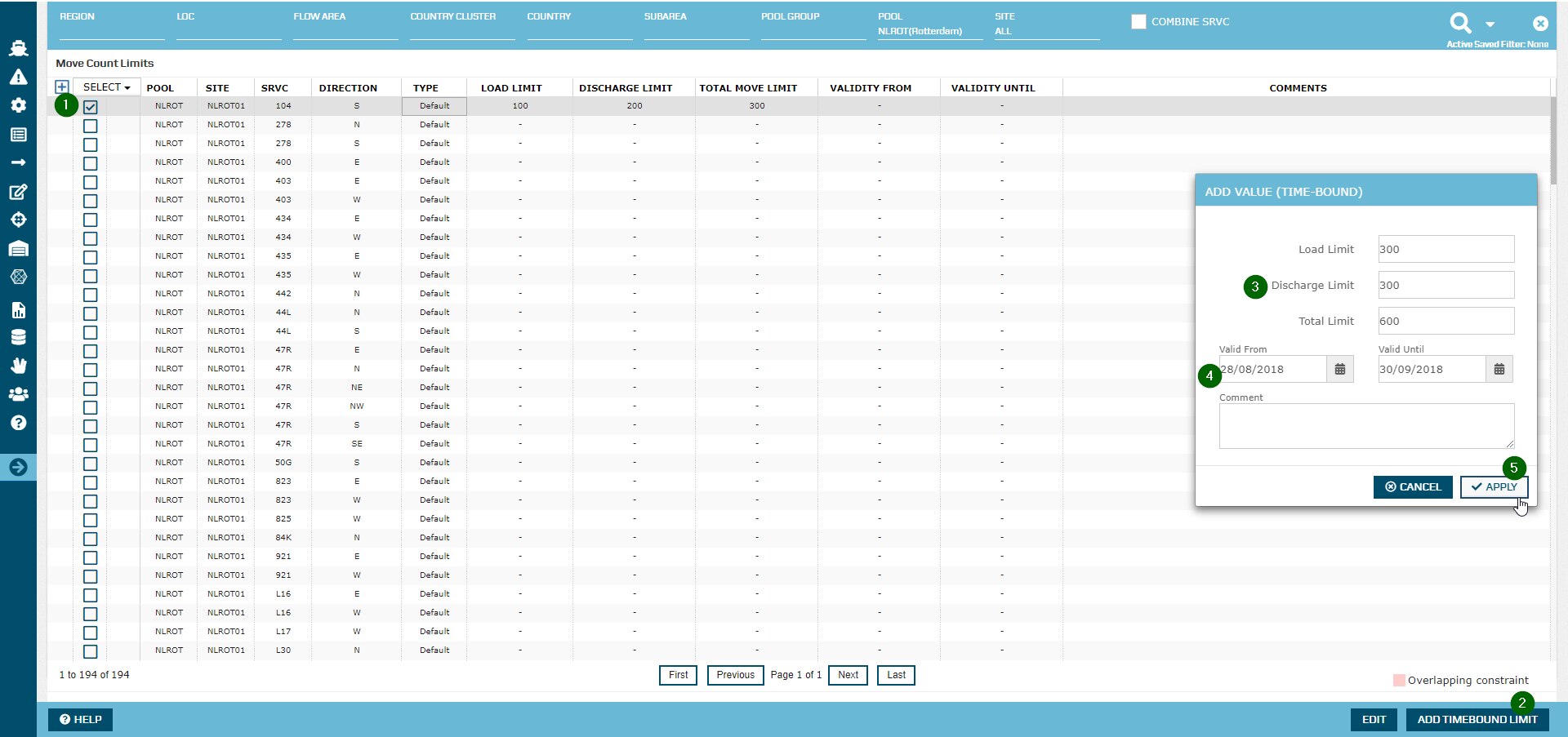 image2018-8-28_12-48-31.png (image/png)
 image2018-8-28_12-51-38.png (image/png)
 image2018-8-28_13-19-24.png (image/png)
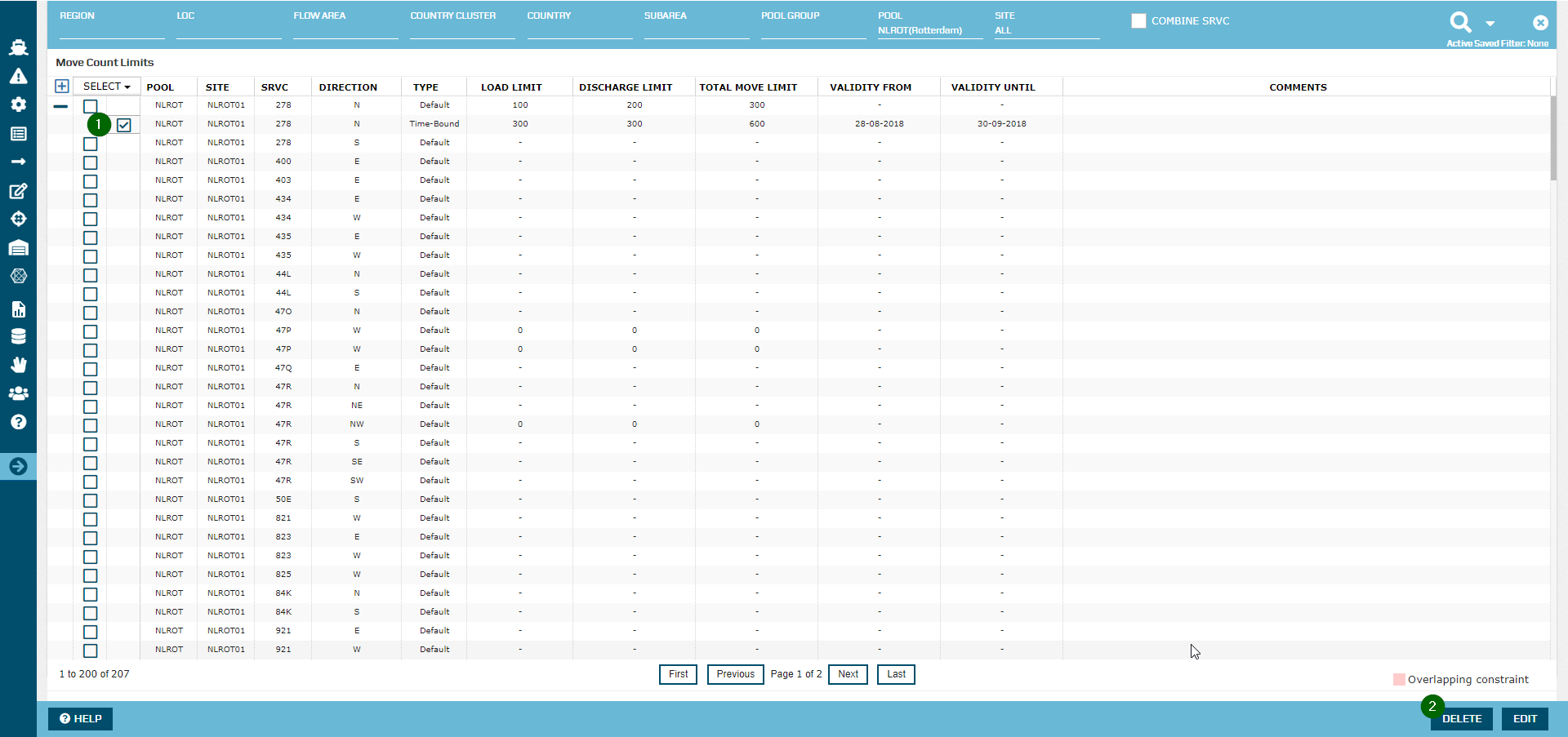 image2018-8-28_14-28-5.png (image/png)
 image2018-8-30_13-28-4.png (image/png)
 image2018-9-3_14-4-33.png (image/png)
 image2018-9-3_14-17-38.png (image/png)
 image2018-9-3_14-19-17.png (image/png)
 image2018-9-3_14-8-10.png (image/png)
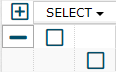 image2018-9-3_14-18-46.png (image/png)
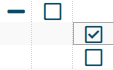 image2018-9-3_14-7-1.png (image/png)
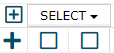 image2018-9-3_10-55-38.png (image/png)
 image2018-9-3_14-9-49.png (image/png)
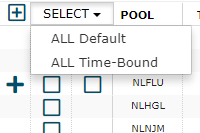 image2018-11-7_22-1-38.png (image/png)
 Screenshot 2024-10-30 at 14.06.23.png (image/png)
 Screenshot 2024-10-30 at 14.16.02.png (image/png)
 Screenshot 2024-10-30 at 14.19.40.png (image/png)
 Screenshot 2024-10-30 at 14.20.22.png (image/png)
 Screenshot 2024-10-30 at 14.25.30.png (image/png)
 Screenshot 2024-10-30 at 14.25.04.png (image/png)
 Screenshot 2024-10-30 at 14.35.14.png (image/png)
 search area.png (image/png)
 Screenshot 2025-05-02 at 3.38.47 PM.png (image/png)
 Screenshot 2025-05-02 at 3.39.37 PM.png (image/png)
 Screenshot 2025-05-02 at 3.43.12 PM.png (image/png)
