You can subscribe for events and updates on OTTs and other areas described below. When you get access to ROCK for the first time, you will be automatically subscribed to a few of these notifications. You can update your subscriptions at any time.
How do I work with notifications?
Receiving and consuming notifications
Notifications are received via in-product notifications. The number above the bell icon shows the count of the unread notifications.
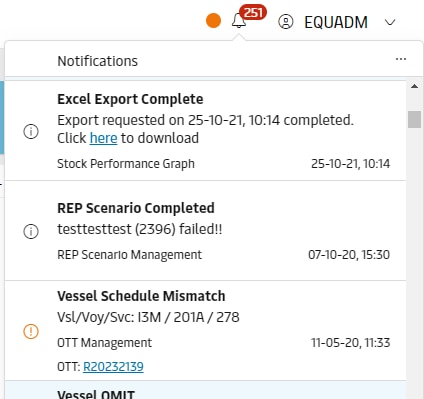
You can also opt in for receiving emails. Both email and in-product notifications contain the same information. All emails are received from CUS006@maersk.com and contain the update category (event) in the subject e.g. ROCK Notification: OTT Volume changes.
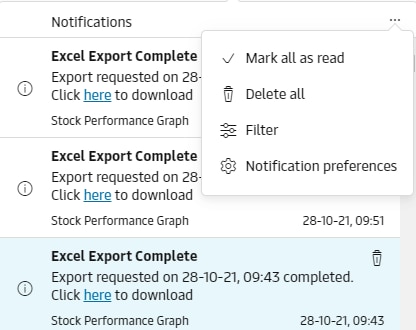
To allow for managing your notifications, ROCK provides the following actions:
Notification actions
Mark as read - a notification is marked as “read” when you click on it. Unread notifications have blue background, read ones - white.
Delete - delete button appears on hover of a notification. Deleting a notification is irreversible.
Bulk actions via “…” menu
Mark all as read - all notifications are marked as read.
Delete all
Filter - you can select to see only particular notification types in your current session. You will still receive notifications based on your subscriptions, but with filters you have control over which ones you see in your session.
Link to notification preferences
Notification preferences
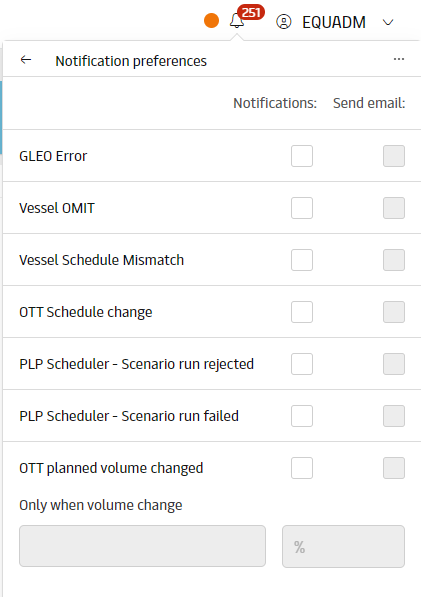
Note that PLP-related notifications are visible only to users with Scenario Manager = Super-User profile.
Notification types
OTT Notifications
There are 5 different types of events in ROCK related to OTTs, where the user can subscribe to on Notification Preferences screen.
All OTT notifications contain a link to the OTT.
Event | When | Who is notified * | Sample Notification Message | Configuration | |
|---|---|---|---|---|---|
| 1 | Vessel OMIT | Each time an OTT gets updated with OMIT flag from GSIS |
| 'R17169041 Vsl/Voy/Svc: 098/1778/34' | N/A |
| 2 | Vessel Mismatch | Each time an OTT gets updated with Mismatch flag from GSIS |
| 'R17169041 Vsl/Voy/Svc: 098/1778/34' | N/A |
| 3 | OTT Volume Change | The planned volume on the OTT for one or more equipment type changes | All the users on the OTT log who once changed this OTT, except the user who is doing the change | 'Volkan Guney changed the volumes on OTT R17169041' | The user can set a threshold as to how big a volume change should be in order to notify. Possible to select Units, % or TEU. Default is 10%. |
| 4 | OTT Schedule Change | A user changes the schedule of an OTT | All the users on the OTT log who once changed this OTT, except the user who is doing the change | 'Volkan Guney changed the schedule on OTT R17169041' | N/A |
* the person needs to have subscribed to this event in their Notification preferences
PLP Scheduler Notifications
There are two different types of notifications related to scenario scheduler jobs:
Event | Description | |
|---|---|---|
| 1 | PLP Scheduler - Scenario Run Rejected | PLP scenario manager was not able to access all required data to start running the scenario. See REP- and PLP Scenario Manager for more details. |
| 2 | PLP Scheduler - Scenario Run Failed | PLP scenario manager started running but it didn't complete successfully. See REP- and PLP Scenario Manager for more details. |
Excel Import/Export Notifications
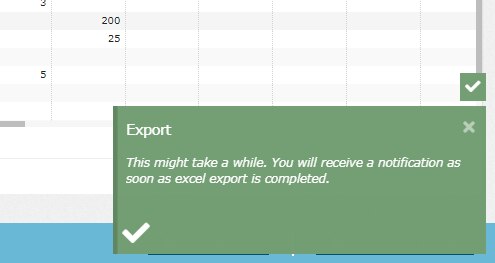
ROCK uses the notification system also in relation to excel import/export jobs. Across ROCK there are numerous screen where user can export ROCK data to Excel or import Excel content into ROCK. Depending on the amount of data chosen, these operations can take a long time, keeping the user tied to the screen and even potentially causing time-outs and result in no data retrieval at all. To address this issue, ROCK attempts to complete the job for 5 seconds first. If the job is not complete, ROCK shows a message to the user saying that they will get a notification when it is done, and runs the job in the background instead, in an asynchronous manner. Later when ROCK completes the job with success or failure, it automatically generates a notification for the requesting user and displays it on the Notifications grid.
Event | Sample Notification Message | |
|---|---|---|
| 1 | Excel export complete | Excel export requested on 01-Nov 13:45 completed. Click here to download |
| 2 | Excel export error | Excel export requested on 01-Nov 13:45 has failed. Please report an incident to service desk |
| 3 | Forecast import complete | Forecast import requested on 01-Nov 13:45 completed. |
| 4 | Forecast import error | Forecast import requested on 01-Nov 13:45 has failed. Please report an incident to service desk |
Note that the notifications above are not optional (not included in Notification preferences, you can’t opt out). The system generates all of these invariably to all requesting users. The system does not send a notification email for these events.
Design Notes
The logic deciding to export excel in an asynchronous manner can be seen here: Visio format: async export v01.vsdx PDF format: async export v01 .pdf
The system automatically deletes notification records older than 2 months (based on creation date) once a month
The system does not create an OTT notification if the OTT is in Cancelled state
Attachments:
 notifications.png (image/png)
notification_preferences.png (image/png)
notification_actions.png (image/png)
notification_excel_download_in_progress.png (image/png)
notifications.png (image/png)
notification_preferences.png (image/png)
notification_actions.png (image/png)
notification_excel_download_in_progress.png (image/png)
 image2018-9-23_14-39-1.png (image/png)
