Introduction
ROCK Master Data is a page in ROCK used to manage a large part of the data inputs used to plan OTTs and to manage inputs for REP and PLP flow optimization.
Page Access
The page is accessible from the sidebar using the "Master Data" entry point. For specific permissions in the site, see User Roles & Permissions.
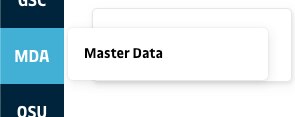
Navigation
ROCK Master Data page consists of two sections. The first section on the left includes a list menu of master data categories that the user can click, in order to manage that data individually. To differentiate between the types of master data in the list, three types of icons are used.
Book  | The book represents specific libraries (i.e. dedicated ROCK screens) where the master data is managed directly in the user interface. Clicking master data of this type will redirect the user to the specific page. |
File  | The file represents master data that is managed through simple file uploads directly to DDFO database or sourced from external systems. Clicking master data of this type will populate the right section of the screen with a grid. |
Quick Access
The ROCK Master Data page keeps a set of quick access links fixed in the top. Clicking these links will open a dedicated page for each, that allows users to manage the Master Data in a page. The below list specifies documentation to these libraries.
File-based Master Data
The primary file-based Master Data used for preparing PLP scenarios are specified below.
Asset Plans
Master Data Type | Type | Description | Data Owner |
|---|---|---|---|
In-Fleeting Forecast | File | Expected long-term in-fleeting of container units. Data is per type per flow area per month. | Equipment Fleet Mgmt |
Out-Fleeting Forecast | File | Expected long-term out-fleeting of container units. Data is per type per month. | Equipment Fleet Mgmt |
One Ways | File | Expected long-term one-ways of container units. Data is per type per flow area per month. | Equipment Fleet Mgmt |
Out-Fleeting Units | File | History of out-fleeted container units. Data is per type per site per month. | RKEM |
Short Term Fleet Planning | File | Expected short-term in-fleeting of container units. | Equipment Fleet Mgmt |
Unit Cost
Master Data Type | Type | Description | Data Owner |
|---|---|---|---|
Storage Cost | File | Storage Cost in USD per TEU per day. Data is per equipment size per flow area | Finance |
Equipment Cost | File | The deprivation cost of equipment per day. Data is per equipment group. | Finance |
Restow Cost | File | The restow cost in USD per move introduced in the model to specific vesselcalls, given a utilisation range. Data is per service/site/departure-direction to indicate the call, and utilisation range indicating when the restow cost should be modeled. | Stowage |
Restrictions
Master Data Type | Type | Description | Data Owner |
|---|---|---|---|
EMR Days | File | The EMR days is number of actual days introduced by PLP to any gated in stock before containers are considered part of stock (ready for export). Data is per equipment category (DRY/REEF) per flow area. | Equipment EMR |
Cabotage, Country (PLP) | File | Cabotage rules to be respected by PLP solver on a country level. Countries on the list may only be called by vessels registered under specific country flags. | Equipment Flow Mgmt |
Cabotage, Pool (PLP) | File | Cabotage rules to be respected by PLP solver on a pool level. Pools are restricted on specific cargo operations (Load or Discharge) to vessels registered under specific country flags. | Equipment Flow Mgmt |
Flow Restrictions, Country (PLP) | File | Flow restrictions defining if calls between port pairs in different countries must require intermediate countries being called in between each other, or must not be called in between each other. | Equipment Flow Mgmt |
Container Intelligence
Master Data Type | Type | Description | Data Owner |
|---|---|---|---|
Avg SIT | File | The Average Stock In Transit (SIT) is calculated in ROCK as the average monthly units of empty container units in a geo, that is currently gated-out and not part of the stock. The data is per equipment type per flow area. | ROCK |
Total Active Fleet | File | From the COMS Database of RKEM Cached Moves, any active container is defined by last move not being a disposed or redelivered container, and the container ownership is own, leased short-term or long-term or one-way. The data is one single number of container units. | ROCK |
Practical Use
When clicking a specific master data type that are not managed in dedicated ROCK pages, the right section of the screen is populated and the result would look similar to below.
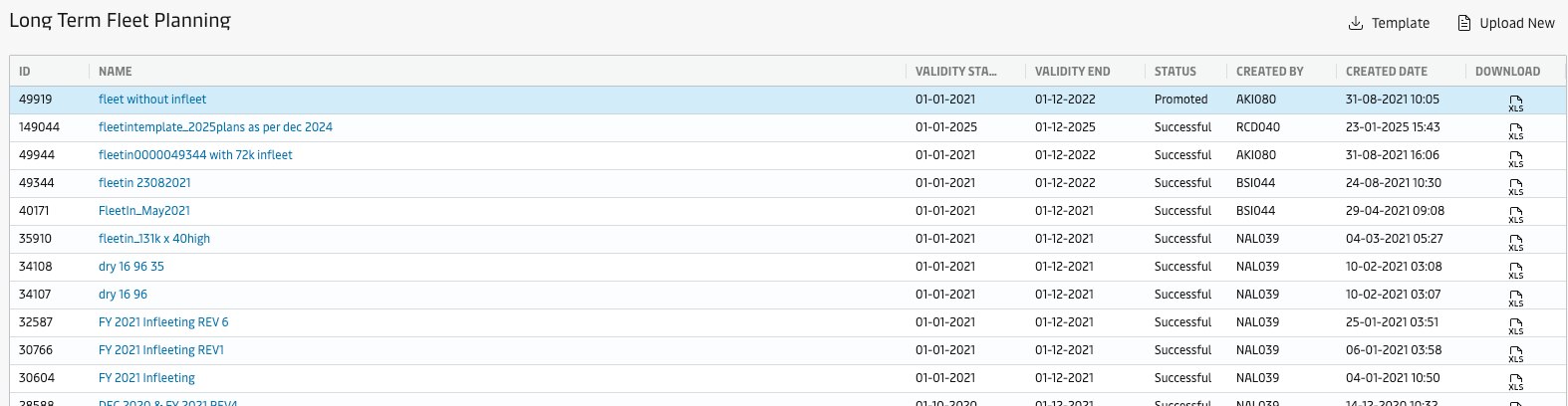
Master Data Grid
The columns in the grid are described below. The buttons shown above the grid are used to manage the master data and is described in the section "Manage Master Data".
Grid Columns | Description |
|---|---|
ID | Unique id for the master data set. |
Name | The name specified for the master data set. |
Validity Start and Validity End* | Specifies the associated validity period for the data. |
Status | When new master data set is uploaded it is tested against some validation criteria. Depending on the results, the status changes to either "Successful" or "Failed". |
Created By and Created Date | Created By shows the UID of the user who uploaded or generated the master data set. Created Date is the timestamp for the creation of the master data. |
Download | This column gives a direct link to download a local copy of the master data. |
Master Data Dialog
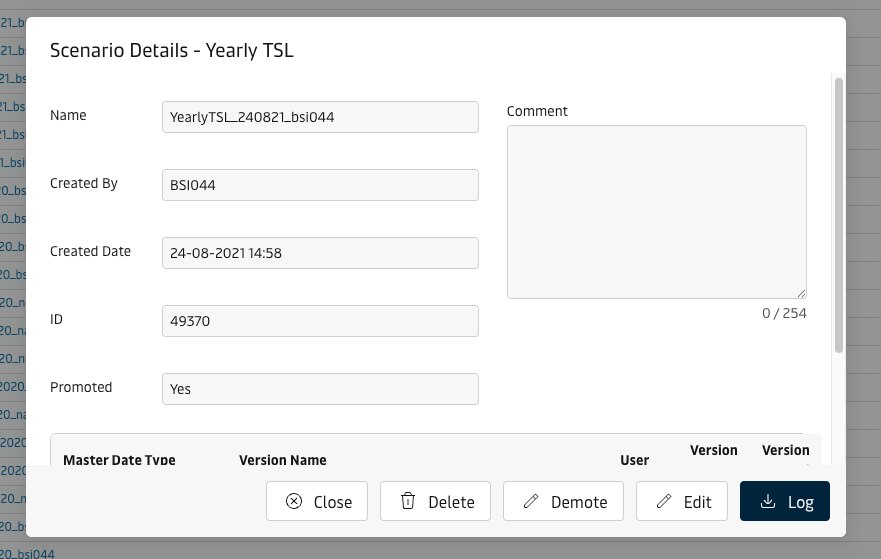
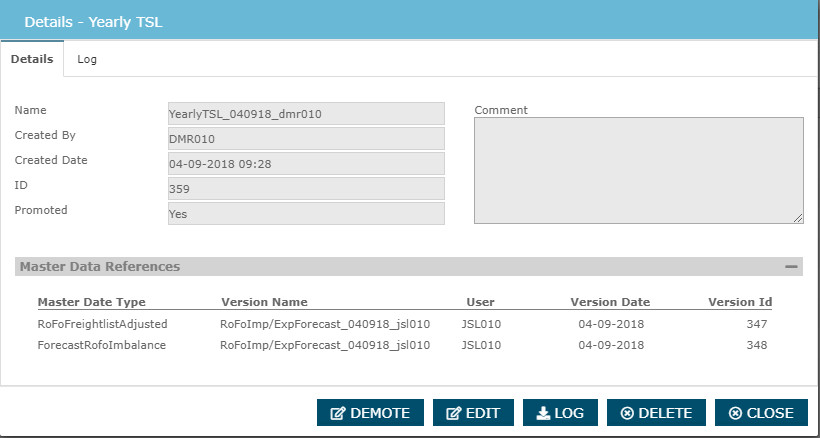
To each set of master data, it is possible to click the "Name" column to open a dialog with additional information. When master data details have been opened, a set of tabs, or nav's, are shown in the top of the window pop-up. The dialog also includes buttons to promote/demote the master data set, download a copy of the logged validation events, and a button close the dialog. Furthermore, an "Edit" button allows user to change the name and description of the master data set.
Master Data Details
Manage Master Data
The Master Data screens in the Master Data library are used to manage master data for generating OTTs and maintaining promoted versions.
New Master Data
New sets of Master Data can be created the following ways
Option | Event Type | Description | |
|---|---|---|---|
| 1 | Upload New | Manual | Users can upload new version by using the "Upload New" button available on the top-right of the grid. Clicking the button requests user to provide a name and description for the master data set and point to a local file to be uploaded.  To assist users in provided data in the correct format, a template for the required columns is available though a dedicated download button "Template".  |
To ensure data quality of master data, any new data is validation against a set of criteria, defined in the back-end of DDFO. The validation process logs events in as information, warnings or errors, and returns a final result "Successful" or "Failed".
Promote/demote Master Data
In order for PLP to run every day using an automated process, ROCK includes functionality to manage and facilitate the preparation of scenarios with correct and up-to-date data. To assist this process, the master data types that are managed through files are required to have a single "promoted" version, signifying the data representing the baseline. As there can only be one promoted version to a given time, when a master data set is promoted, any other promoted master data is instantly demoted. Promotion and Demotion of scenarios can be done in the master data dialog by using the action buttons "Promote" and "Demote" respectively.
When master data type is selected from the list menu, the grid is populated as below. The promoted version is fixed to the top of the list, with status "Promoted", and highlighted with a blue color.

Delete Master Data
Master data sets can be deleted from the master data dialog with the action button "Delete".
Attachments:
 image2018-8-16_14-14-46.png (image/png)
 image2018-8-22_14-55-6.png (image/png)
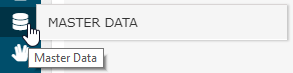 image2018-8-23_7-30-33.png (image/png)
 image2018-8-23_7-30-52.png (image/png)
 image2018-8-23_8-51-33.png (image/png)
 image2018-8-23_13-27-59.png (image/png)
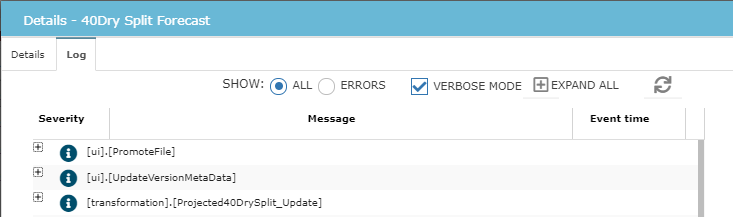 image2018-8-23_14-10-36.png (image/png)
 image2018-8-23_14-11-1.png (image/png)
 image2018-8-23_14-22-36.png (image/png)
 image2018-8-23_14-28-41.png (image/png)
 image2018-9-7_8-12-33.png (image/png)
 image2018-9-7_8-12-54.png (image/png)
 image2018-9-7_8-13-40.png (image/png)
 image2018-9-11_15-33-15.png (image/png)
 image2018-9-11_15-58-26.png (image/png)
 Screenshot 2025-09-04 at 9.41.27 AM.png (image/png)
 Screenshot 2025-09-04 at 9.42.27 AM.png (image/png)
 Screenshot 2025-09-04 at 9.44.27 AM.png (image/png)
 Screenshot 2025-09-04 at 9.44.53 AM.png (image/png)
 Screenshot 2025-09-04 at 9.49.21 AM.png (image/png)
 Screenshot 2025-09-04 at 9.53.12 AM.png (image/png)
